

Unity UI Toolkit ListView at runtime: dynamic lists, binding and grids in Unity 6
To populate a Unity UI Toolkit ListView at runtime in Unity 6, assign itemsSource, set fixedItemHeight or dynamic virtualization, and supply makeItem and bindItem callbacks on a UIDocument query. Register button click handlers in makeItem and reset row state in unbindItem so scrolling never duplicates events or leaves stale styles.
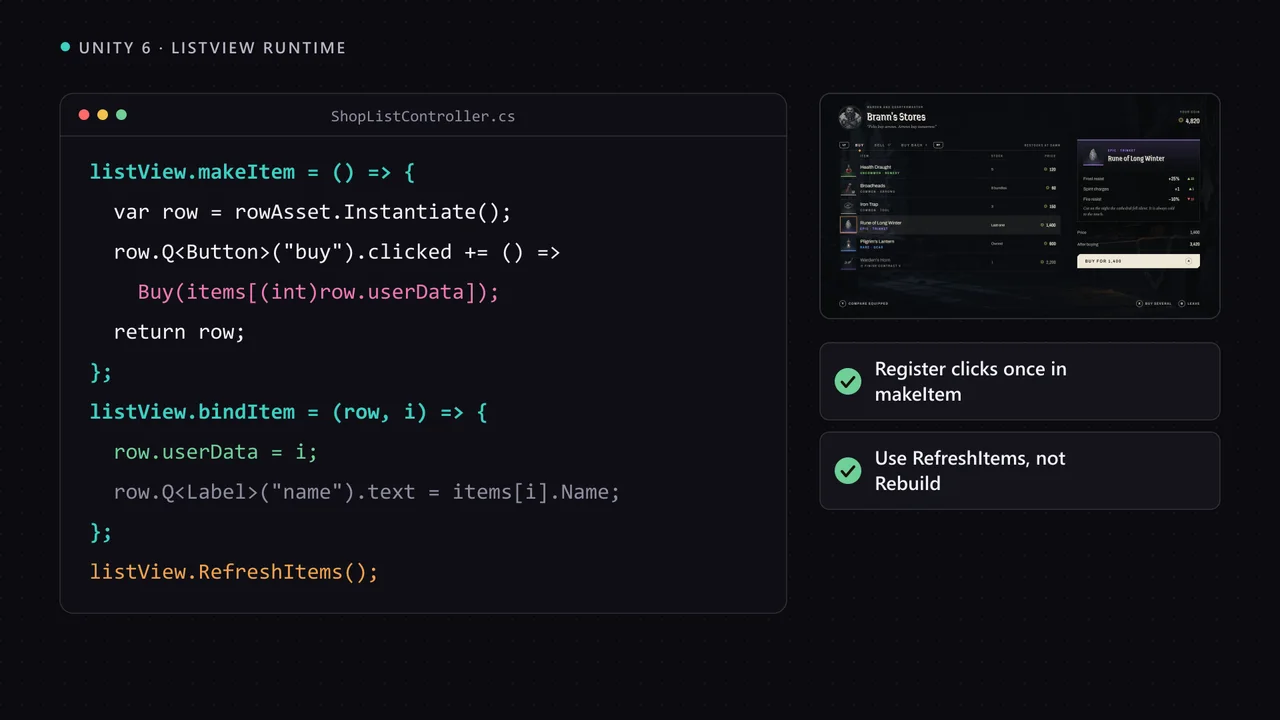
Unity 6 developers migrating menus, quest logs, and shops to UI Toolkit often hit the same wall with ListView: the UXML preview looks fine in UI Builder, then the runtime list renders blank, clips rows, or fires button callbacks three times after scrolling. Almost every one of those failures comes down to how ListView recycles pooled VisualElement rows at runtime.
Minimal working runtime ListView in Unity 6
A working runtime ListView needs four pieces wired inside OnEnable() (not Awake(), because UIDocument recreates its visual tree whenever the component enables): a non-null itemsSource, a fixedItemHeight matching your USS row height, a makeItem factory, and a bindItem callback. Query the element from uiDocument.rootVisualElement, set callbacks before assigning itemsSource, and wire itemsChosen for double-click, Enter, and gamepad Submit.
Start with a minimal UXML layout where the ListView can grow into available space (flex-grow: 1):
<ui:UXML xmlns:ui="UnityEngine.UIElements">
    <ui:VisualElement name="shop-root" style="flex-grow: 1; padding: 24px;">
        <ui:ListView name="item-list"
                     fixed-item-height="56"
                     selection-type="Single"
                     style="flex-grow: 1;" />
    </ui:VisualElement>
</ui:UXML>
Then populate and bind the ListView from C# against a runtime list of records, following the pattern documented in the Unity 6 ListView manual and runtime UI guide:
using System;
using System.Collections.Generic;
using UnityEngine;
using UnityEngine.UIElements;

[Serializable]
public class ShopEntry
{
    public string Id;
    public string DisplayName;
    public int Price;
    public bool CanAfford;
}

[RequireComponent(typeof(UIDocument))]
public class ShopListController : MonoBehaviour
{
    [SerializeField] private VisualTreeAsset rowTemplate;

    private readonly List<ShopEntry> items = new();
    private ListView listView;

    private void OnEnable()
    {
        var root = GetComponent<UIDocument>().rootVisualElement;
        listView = root.Q<ListView>("item-list");

        listView.virtualizationMethod = CollectionVirtualizationMethod.FixedHeight;
        listView.fixedItemHeight = 56f;
        listView.selectionType = SelectionType.Single;

        listView.makeItem = MakeRow;
        listView.bindItem = BindRow;
        listView.unbindItem = UnbindRow;
        listView.itemsChosen += OnItemsChosen;

        items.Clear();
        items.Add(new ShopEntry { Id = "herb", DisplayName = "Dried Herbs", Price = 120, CanAfford = true });
        items.Add(new ShopEntry { Id = "oil", DisplayName = "Lantern Oil", Price = 240, CanAfford = true });
        items.Add(new ShopEntry { Id = "rune", DisplayName = "Long Winter Rune", Price = 1400, CanAfford = false });

        listView.itemsSource = items;
        listView.Rebuild();
    }

    private void OnDisable()
    {
        if (listView == null) return;
        listView.itemsChosen -= OnItemsChosen;
        listView.makeItem = null;
        listView.bindItem = null;
        listView.unbindItem = null;
    }

    private VisualElement MakeRow()
    {
        VisualElement row = rowTemplate != null ? rowTemplate.Instantiate() : CreateFallbackRow();
        var buyButton = row.Q<Button>("buy-button");
        buyButton.clicked += () =>
        {
            if (row.userData is int index && index >= 0 && index < items.Count)
                TryPurchase(items[index]);
        };
        return row;
    }

    private void BindRow(VisualElement row, int index)
    {
        row.userData = index;
        var entry = items[index];
        row.Q<Label>("item-name").text = entry.DisplayName;
        row.Q<Label>("item-price").text = $"{entry.Price} coins";
        var buyButton = row.Q<Button>("buy-button");
        buyButton.SetEnabled(entry.CanAfford);
        row.EnableInClassList("row-unaffordable", !entry.CanAfford);
    }

    private void UnbindRow(VisualElement row, int index)
    {
        row.userData = null;
        row.RemoveFromClassList("row-unaffordable");
    }

    private void OnItemsChosen(IEnumerable<object> chosen)
    {
        foreach (var obj in chosen)
        {
            if (obj is ShopEntry entry) TryPurchase(entry);
        }
    }

    private void TryPurchase(ShopEntry entry) => Debug.Log($"Purchase requested: {entry.Id}");

    private static VisualElement CreateFallbackRow()
    {
        var row = new VisualElement();
        row.style.flexDirection = FlexDirection.Row;
        row.style.justifyContent = Justify.SpaceBetween;
        row.style.alignItems = Align.Center;
        row.style.height = 56f;
        row.Add(new Label { name = "item-name" });
        row.Add(new Label { name = "item-price" });
        row.Add(new Button { name = "buy-button", text = "Buy" });
        return row;
    }
}
Setting row.userData = index inside BindRow while registering buyButton.clicked once in MakeRow avoids allocating closures on every scroll frame and stops duplicate click events completely.
How virtualization works and why row bugs happen
ListView achieves low memory overhead by creating only enough VisualElement rows to fill the visible viewport plus a small scroll buffer. As the player scrolls down, row elements leaving the top of the scroll viewport are detached from their old data index via unbindItem and immediately passed back into bindItem with a new bottom index.
Because the same VisualElement instance returns repeatedly, two classic bugs occur when you treat bindItem like a constructor:
- Duplicate event firing: Writing
buyButton.clicked += () => Buy(items[index])insidebindItemstacks another lambda onto the button on every recycle. Clicking row 20 after scrolling can execute purchases for row 2, row 9, and row 20 at once. - Ghost styles and classes: Adding a highlight class, disabling a button, or changing an icon tint in
bindItemwithout reverting it inunbindItem(or unconditionally setting both true and false branches inbindItem) leaves disabled or selected styling bleeding onto unrelated rows.
Keep makeItem strictly for instantiating UXML and wiring one-time click listeners that read row.userData, and make bindItem and unbindItem symmetrical.
RefreshItems(), RefreshItem() and Rebuild()
Calling Rebuild() on every data update throws away pooled rows, drops scroll position in some layouts, and resets keyboard focus. Choose the lightest refresh method that matches what actually changed in itemsSource:
| Method | When to call it | Recreates row elements |
|---|---|---|
RefreshItem(int index) |
One row’s text, count, or affordable flag changed in place | No (re-runs bindItem on that visible row) |
RefreshItems() |
Items were added, removed, sorted, or modified in the same list | No (rebinds visible rows and updates list height) |
Rebuild() |
First initialization, switching to a new itemsSource type, or changing makeItem / fixedItemHeight |
Yes (clears and re-instantiates the element pool) |
When the player buys an item and entry.CanAfford flips for a few rows, mutate items and call listView.RefreshItems(). Save Rebuild() for screen initialization or structural template swaps.
Fixed height vs dynamic height
ListView supports CollectionVirtualizationMethod.FixedHeight (the default) and CollectionVirtualizationMethod.DynamicHeight. FixedHeight requires every row to match fixedItemHeight in pixels so UI Toolkit can compute total scroll height and jump directly to any index in constant time without measuring every item.
DynamicHeight measures rows as they appear, which handles multi-line quest descriptions or collapsible headers, at the cost of extra layout passes and occasional scrollbar thumb jumps on very long lists. For shops, leaderboards, and save slots, keep FixedHeight and give your row USS class an explicit height identical to fixedItemHeight so labels never clip or overlap.
Lists vs multi-column inventory grids
A frequent question in Unity UI Toolkit is how to make a ListView wrap items into a 4-column or 6-column inventory grid. Out of the box, ListView lays items out in a single vertical stack, so CSS flex-wrap: wrap on ListView itself will not create a virtualized grid.
Pick one of three patterns depending on your item count and layout:
| UI pattern | Best approach in Unity 6 UI Toolkit | Tradeoff |
|---|---|---|
| Under ~100 inventory slots or equipment grids | ScrollView with a container using flex-direction: row; flex-wrap: wrap; |
No virtualization, so hundreds of complex slots slow down initial build |
| 100+ item grids (craftable recipes, large stash) | Virtualized ListView where each itemsSource entry is a chunk/row of 4–6 items |
Slightly more index math, keeps constant frame time and smooth scrolling |
| Multi-column tables (leaderboards, server browsers) | MultiColumnListView |
Built-in column headers and sorting, rigid row-per-record layout |
Do not force ListView into a grid with fragile USS overrides on internal #unity-content-container selectors; either chunk rows into slices or use a ScrollView for compact player inventories.
Runtime data binding and gamepad navigation in Unity 6
Unity 6 expanded UI Toolkit’s runtime DataBinding API (dataSource and binding paths configured in UI Builder or C#), which reduces manual property assignment when binding simple fields like a label’s text to an object on each row’s dataSource. Even when using Unity 6’s DataBinding inside bindItem (by setting row.dataSource = items[index]), keep pooled row cleanup in mind and clear row.dataSource = null in unbindItem so recycled rows never hold stale object references.
For keyboard and gamepad navigation, three small details prevent dead controls:
- Set
listView.focusable = trueand calllistView.Focus()(or schedule it one frame later withschedule.Execute(() => listView.Focus())) when the menu opens. - Handle
itemsChosenrather than listening only toButton.clicked, so pressing Enter or gamepad A/South on a selected row activates it cleanly. - On back/cancel (
ui_cancelor Escape), return focus to the tab or button that opened the list rather than leaving focus on a hiddenListView.
Common ListView bugs and fixes
| Symptom | Usual cause | Fix |
|---|---|---|
| List renders completely empty | Parent has height: 0 or itemsSource was never assigned |
Add flex-grow: 1 to ListView and its parents; set itemsSource then Rebuild() |
| Rows overlap or leave wide gaps | USS row height differs from fixedItemHeight |
Match height in USS to fixedItemHeight, or use DynamicHeight |
| Wrong item gets bought after scrolling | clicked += registered in bindItem |
Attach listener once in makeItem; store current index in row.userData |
| Disabled class sticks to unrelated rows | bindItem only adds classes, never removes |
Reset classes and enabled state in unbindItem and both branches of bindItem |
| Gamepad D-pad skips over the list | List never received initial focus | Call listView.Focus() when opening the screen and set selectedIndex = 0 |
Building data-driven Unity lists in Envy
For inventories, quest logs, and HUD lists that designers want to lay out and style visually without writing UXML and USS by hand, Envy exports an MIT-licensed UI Toolkit package (com.mythicbrain.envy-ui) for Unity 6.3 and newer. You draw one slot or row on the canvas, bind it to an array path such as inventory.items in the Repeat inspector with a stable id key and optional Fill to empty slots, and wire your C# gameplay code to a clean contract:
ui.SetData("inventory.items", items);
ui.UiEvent += (evt, payload) =>
{
    if (evt == "buy_item") Shop.TryPurchase(payload);
};
Because Envy maps auto-layout rows, columns, and wrap containers directly to UI Toolkit flexbox and handles focus neighbors automatically, compact grids and menus work out of the box and hot-reload when you save .envy.json in Assets/UI/. Be pragmatic about scale: Envy repeaters instantiate full slot elements rather than virtualizing pools, so if a screen needs to scroll through 5,000 log lines at once, keep that specific screen in a native virtualized ListView and drive your menus, HUDs, and shop cards from Envy. Read the Unity runtime docs, the Unity UI Toolkit vs uGUI comparison, the Unity MCP setup guide, and the Unity runtime overview for setup details.
Questions people ask
Why is my Unity UI Toolkit ListView blank at runtime?
A runtime ListView appears blank when itemsSource is null, the ListView or its parent has zero height (missing flex-grow: 1), or virtualizationMethod is FixedHeight without a matching fixedItemHeight above zero.
When should I call RefreshItems() vs Rebuild() on a ListView?
Call RefreshItems() or RefreshItem(index) when values inside the existing list change, items are added or removed, and the row template stays the same. Call Rebuild() only when you replace itemsSource with a different data schema or reassign makeItem or virtualization settings.
Why do buttons inside a UI Toolkit ListView fire multiple times after scrolling?
ListView pools and reuses VisualElement rows as the player scrolls. Subscribing button.clicked += ... inside bindItem attaches a new delegate every time that row is recycled. Register the callback once inside makeItem and read the current index from element.userData or a row controller.
Can Unity UI Toolkit ListView render a multi-column inventory grid?
Not directly as a single multi-column grid of cells. ListView stacks one item per vertical row. For small inventories (under roughly 100 slots), use a ScrollView containing a flex-wrap row container; for large grids, bind each ListView row to a slice of N items.