

Unity UI Toolkit vs uGUI in 2026: which to use for game UI
Unity's Unity 6.6 docs still list uGUI as the recommended runtime UI system, with UI Toolkit as the alternative. UI Toolkit is the better fit for multi-resolution menus and HUDs in UI-heavy games: it has data binding, flexible layout, global styles, transitions, SVG and right-to-left text. uGUI is the better fit for UI that needs Animation Clips or Timeline, in-scene authoring, or easy references from MonoBehaviours.
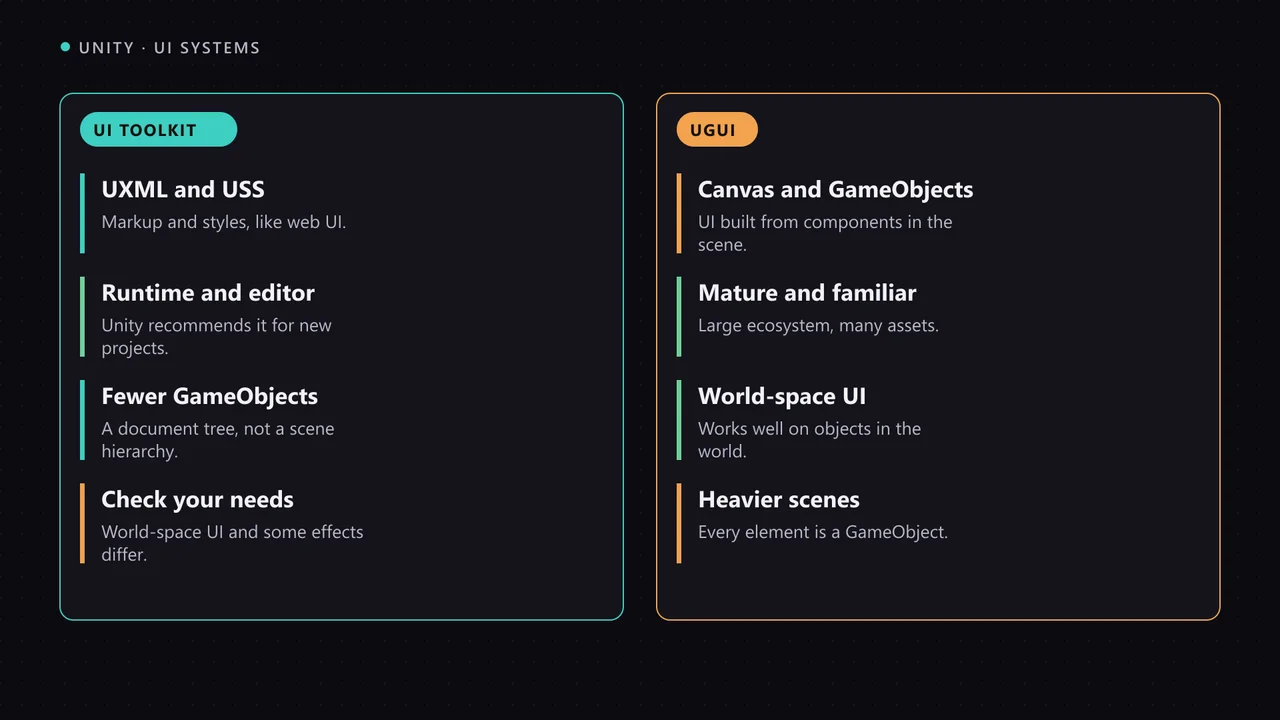
Unity has two runtime UI systems, and the choice comes up at the start of almost every Unity project. Forum threads go back and forth on it. The quickest way to cut through is to start with what Unity’s own documentation says, then look at what your game needs.
What Unity recommends
The Unity 6.6 UI system comparison gives this recommendation:
| Recommended | Alternative | |
|---|---|---|
| Runtime UI (your game) | uGUI (Unity UI) | UI Toolkit |
| Editor UI (tools, inspectors) | UI Toolkit | IMGUI |
It also says UI Toolkit is in active development and releases new features often, while uGUI and IMGUI are established and production-proven, and updated infrequently.
So in late 2026, uGUI is still the official default for game UI. UI Toolkit is a first-class alternative, and for some kinds of games it’s the better one.
What each system can do
From the same page, the runtime features where the two differ:
| Feature | UI Toolkit | uGUI |
|---|---|---|
| In-scene authoring (Scene view) | No | Yes |
| Serialized events (UnityEvents in the Inspector) | No | Yes |
| Animation Clips and Timeline | No | Yes |
| Data binding system | Yes | No |
| UI transition animations | Yes | No |
| Textureless elements (rounded corners, borders without sprites) | Yes | No |
| Advanced flexible layout | Yes | No |
| Global style management (USS) | Yes | No |
| Dynamic texture atlas | Yes | No |
| UI anti-aliasing | Yes | No |
| Right-to-left languages and emoji | Yes | No |
| SVG support | Yes | No |
Both support rich text, scalable text, font fallbacks, adaptive layout, the Input System, world-space rendering, custom materials and shaders, sprites, and masking.
How they feel to work in
uGUI is GameObjects. Every button is a GameObject with a RectTransform, an Image and a Button component. You build it in the Scene view, wire clicks to methods in the Inspector, and animate it with the same Animator you use for everything else. Technical artists who know Unity are at home here. Large screens turn into deep hierarchies, and styling a hundred buttons the same way means prefabs and discipline.
UI Toolkit is documents. Layout lives in UXML, styles in USS (close to CSS), and logic in C#. You build screens in UI Builder. Layout is flexbox. A style change in one USS file updates every screen. Unity’s docs note that UI designers used to design tools tend to be comfortable with it, while technical artists used to GameObjects may not be.
Which to pick
| Your game | Lean towards |
|---|---|
| Menu-heavy: RPG, strategy, management, card game | UI Toolkit |
| Many screen sizes and a HUD that must hold at 16:10 and 21:9 | UI Toolkit |
| Translated into right-to-left languages | UI Toolkit |
| UI animated with Timeline or Animator, cutscene overlays | uGUI |
| Health bars and labels attached to objects in the world | Either; uGUI if you rely on Animator |
| An existing uGUI project | Stay, and try UI Toolkit for new screens |
| A team of Unity generalists with no web background | uGUI, at least to start |
The Unity docs sum up the runtime use cases the same way: multi-resolution menus and HUDs in UI-intensive projects, world-space UI and VR, and UI with custom shaders are often built with UI Toolkit, while UI that needs keyframed animation is often built with uGUI.
Data binding is the quiet deciding factor
Game UI is mostly showing changing numbers. In uGUI, you write the glue: a script holds references to Text and Image components and updates them when values change. In UI Toolkit, the runtime data binding system connects element properties to a data source, which removes much of that glue on data-heavy screens like inventories and stat pages.
If your UI is three buttons and a health bar, this doesn’t matter. If it’s forty screens of stats, it matters a lot. For dynamic shops, logs and inventories, see our Unity 6 UI Toolkit ListView runtime guide.
Where Envy fits
Envy runs in Unity on UI Toolkit. The EnvyUI component rebuilds a screen designed in Envy as UI Toolkit elements at runtime, with data binding, events, animations, transitions, translations and keyboard and gamepad focus, using either input system. Your scripts call SetData("player.hp", 72) and listen to UiEvent. It needs Unity 6.3 or newer, and the same file also runs in Godot and the browser.
It doesn’t replace uGUI in a project that relies on Timeline-driven UI. For menus and HUDs that you’d rather design visually than in UXML, it skips the UI Builder step. The Unity runtime docs list what’s supported.
Questions people ask
Is UI Toolkit replacing uGUI?
Unity describes UI Toolkit as in active development with frequent new features, and uGUI as established, production-proven and updated infrequently. In the Unity 6.6 docs uGUI is still the recommended runtime system, so both remain supported choices.
Does UI Toolkit support world-space UI?
Yes. The Unity 6.6 feature comparison marks world-space (3D) rendering as supported by both UI Toolkit and uGUI, and lists world-space UI and VR as a use case often built with UI Toolkit.
Can I animate UI Toolkit with Timeline?
Not directly. Integration with Animation Clips and Timeline is a uGUI feature. UI Toolkit uses USS transitions and code-driven animation instead.
Can I use UI Toolkit and uGUI in the same project?
Yes. Many projects keep existing uGUI screens and build new menus in UI Toolkit. Watch input handling and draw order where the two overlap.