

Make a Godot settings menu with an AI coding agent
Give the UI a setting path and a change or commit event, then connect that interface to the game system that applies and saves the value. Test a fresh start, a changed setting and a restart rather than checking the slider alone.
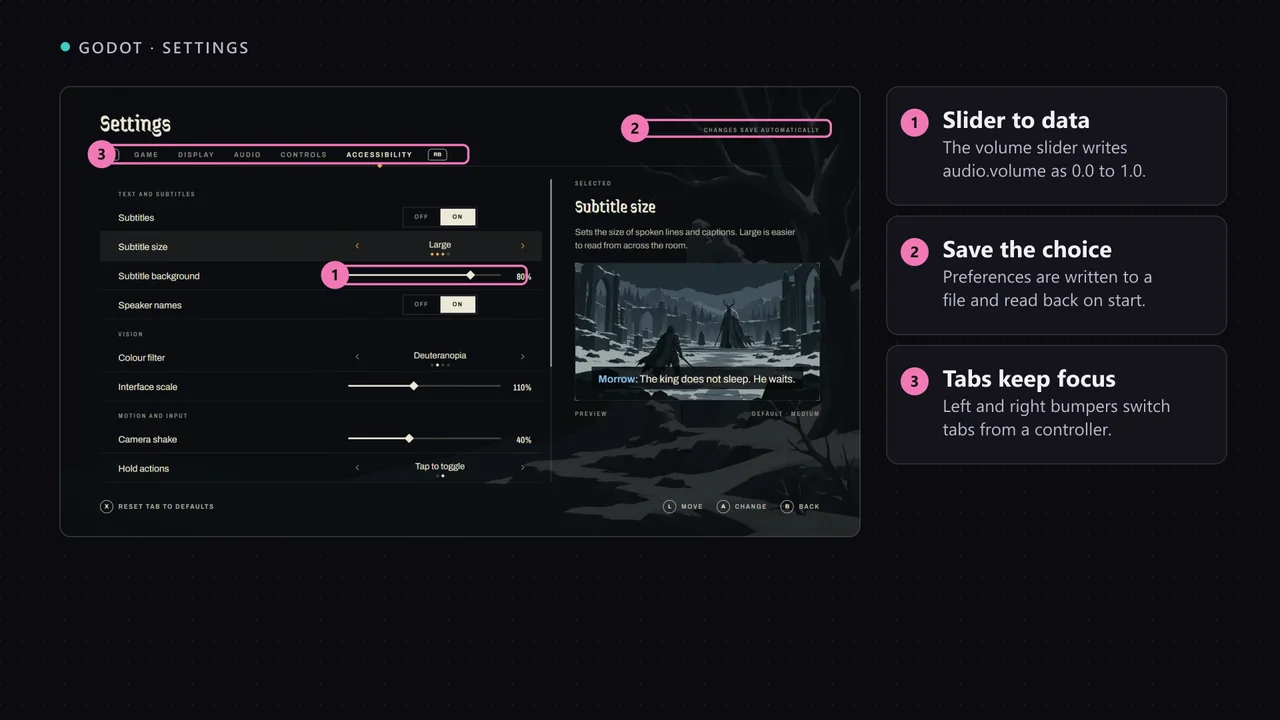
An audio slider is a useful first settings feature because it crosses three boundaries: the player changes a value, the game applies it, and the next launch restores it. A moving thumb only proves the first part.
Choose the contract before writing code
For this example, use a master-volume value from 0 to 100:
| Item | Example | Responsibility |
|---|---|---|
| Data path | settings.volume |
Game supplies the initial value; control writes changes |
| Commit event | volume_set |
Game receives the final value |
| Payload | Numeric text from 0 to 100 | Game parses and clamps it |
| Persistence | Game settings file | Game loads a default and saves accepted changes |
These names are examples. Decide whether changes should apply continuously or only on commit. If the player can cancel a settings screen, specify which values are restored and whether the saved file changes.
Make the slider in Envy
Add a Slider control, set its data path to settings.volume and set the minimum, maximum and step to suit your design. Set its Commit event to volume_set. Give it a sample value and a visible label. The control reference describes slider ranges, change and commit events, and keyboard behavior.
Envy’s control writes its path as the value changes. A commit event sends the final value as a payload. The game should still validate the value, apply it to audio and save it. A missing or malformed payload should not silently become an unintended setting.
Connect the slider to Godot
Give the agent the exported contract and your existing settings code. Ask it to load saved values before showing the menu, call set_data("settings.volume", value), and handle the commit event. If the project has no settings system, agree on defaults and an error policy before adding one.
Godot’s AudioServer documentation describes both linear and decibel volume APIs. If your slider represents a percentage, convert it to your game’s chosen audio scale in one place. Do not assume that a visually halfway slider will sound half as loud. A curve can make a control easier to use, but its behavior is a design choice.
Godot’s ConfigFile reference shows how to store and load values under user://. Handle a missing file with defaults and check save errors. For more complex settings, use the persistence system already present in the project.
Give the agent an acceptance checklist
Integrate the supplied settings UI with our existing Godot settings.
Use the paths and events in contract.json. Load the saved master
volume before the menu appears; use the project default when absent.
Apply and save a committed value. Report parse or save failures.
Test 0, 50 and 100, keyboard/gamepad adjustment, and a game restart.
Do not invent a key-rebinding feature or replace the audio system.
Review the resulting code and run the game. Check that the displayed value matches the sound after a restart and that the slider can be adjusted without accidentally moving focus. Also test the cancel behavior your game specifies. For screen layout and handoff details, see Envy’s AI workflow and the Godot runtime guide.
Questions people ask
Does a settings slider save the player's preference by itself?
The UI can write a data path and emit a value. Your game still needs to apply the setting and save and restore it using its own settings system.
Should a volume slider use a percentage or a decimal?
Either can work. Choose a range, document it in the contract and convert consistently where the game applies the value.
Can Godot store player settings in a file?
Yes. Godot provides ConfigFile for INI-style settings. Your game should handle missing files, defaults and save errors.