

How to make a main menu in Godot 4 that works with a controller
In Godot 4, a main menu is a scene with a full-rect Control root, a container of Buttons, and a script that connects each button's pressed signal. Call grab_focus.call_deferred() on the first button so a controller works at once, and use get_tree().change_scene_to_file() to start the game.
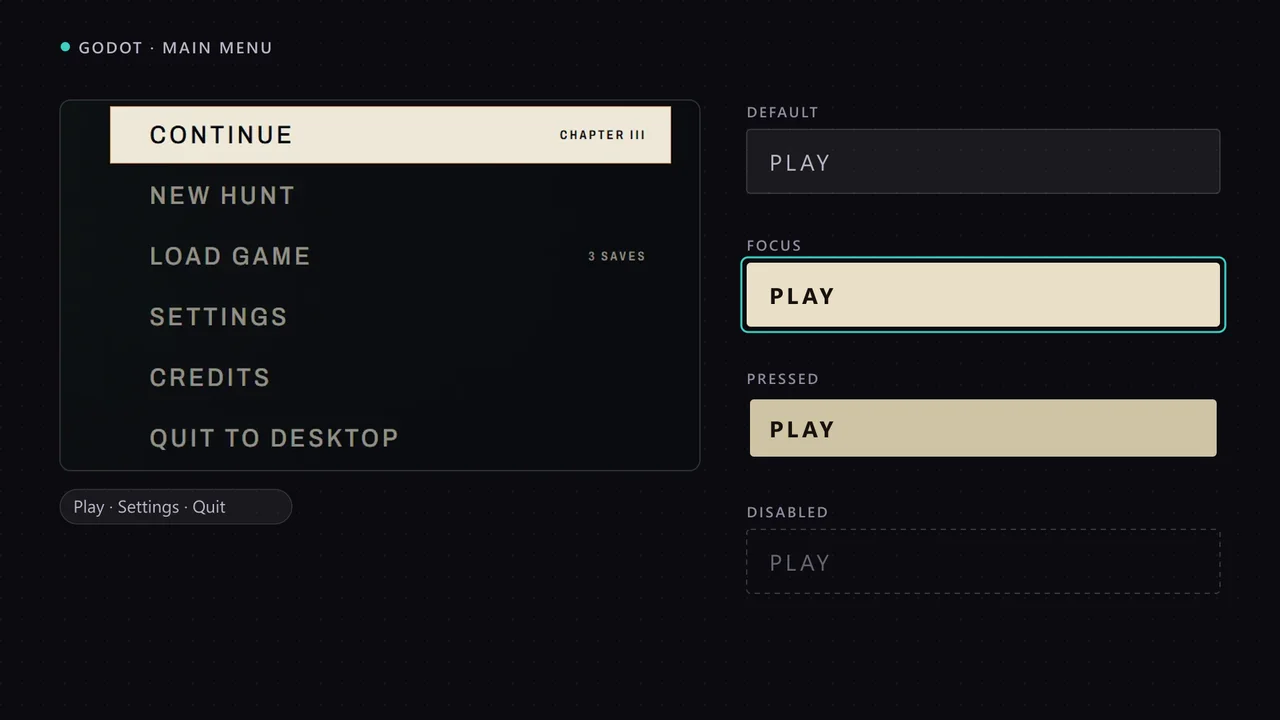
Most Godot main menu tutorials stop when the buttons respond to the mouse. Then someone plugs in a controller, presses the d-pad, and nothing happens. This guide builds a main menu in Godot 4 that works with a mouse, a keyboard and a gamepad from the first frame, with a settings panel that opens and closes properly.
You need Godot 4.x and an empty project. Everything here uses built-in nodes.
The scene tree
Create a new scene with a Control node as the root and name it MainMenu. In the toolbar, pick Layout › Full Rect so the root fills the screen. Anchors on child nodes are measured against their parent, so a root that is 40 by 40 pixels drags everything into the top-left corner. For a deeper look at containers, CanvasLayer separation and mouse_filter, see our Godot 4 Control nodes and CanvasLayer tutorial.
Build this tree:
MainMenu (Control, Full Rect)
├─ Background (TextureRect or ColorRect, Full Rect)
├─ MarginContainer (Full Rect, margins 64 px)
│  └─ VBoxContainer
│     ├─ Title (Label)
│     ├─ PlayButton (Button)
│     ├─ SettingsButton (Button)
│     └─ QuitButton (Button)
└─ SettingsPanel (PanelContainer, hidden)
   └─ VBoxContainer
      ├─ VolumeSlider (HSlider)
      ├─ FullscreenCheck (CheckButton)
      └─ BackButton (Button)
The MarginContainer keeps the menu away from the screen edges, which also keeps it inside a TV’s overscan area. The VBoxContainer stacks the buttons and spaces them for you. Set its Alignment to Center, or anchor the MarginContainer to one side if you want the classic left-aligned menu.
Right-click each button and choose Access as Unique Name. That lets the script find them with %PlayButton even if you move them around the tree later.
The script
Attach a script to MainMenu:
extends Control

@onready var play_button: Button = %PlayButton
@onready var settings_button: Button = %SettingsButton
@onready var quit_button: Button = %QuitButton
@onready var settings_panel: Control = %SettingsPanel
@onready var back_button: Button = %BackButton

func _ready() -> void:
	play_button.pressed.connect(_on_play_pressed)
	settings_button.pressed.connect(_open_settings)
	quit_button.pressed.connect(func(): get_tree().quit())
	back_button.pressed.connect(_close_settings)
	# A browser tab can't be closed by the game.
	quit_button.visible = not OS.has_feature("web")
	play_button.grab_focus.call_deferred()

func _on_play_pressed() -> void:
	get_tree().change_scene_to_file("res://scenes/game.tscn")

func _open_settings() -> void:
	settings_panel.show()
	%VolumeSlider.grab_focus.call_deferred()

func _close_settings() -> void:
	settings_panel.hide()
	settings_button.grab_focus.call_deferred()

func _unhandled_input(event: InputEvent) -> void:
	if settings_panel.visible and event.is_action_pressed("ui_cancel"):
		_close_settings()
		get_viewport().set_input_as_handled()
Three lines in there do most of the work for controller players.
play_button.grab_focus.call_deferred()gives the menu a starting point. Without a focused control, arrow keys and the d-pad do nothing. The Godot docs on UI navigation use the same deferred call in_ready()._close_settings()hands focus back to the Settings button. If you skip this, focus sits on a hidden slider and the player is stuck.ui_cancelcloses the panel. By default it is mapped to Escape and the gamepad’s B button (the right face button on most layouts), so Back works the way players expect.
Set the menu as the first scene under Project Settings › Application › Run › Main Scene, and press F5.
Make focus visible
A controller player has to see which button is selected. Godot draws a focus outline with the default theme, but a custom theme often replaces it with nothing.
Create a Theme resource, assign it to the MainMenu root’s Theme property, and give Button a focus style. A StyleBoxFlat with a 2 px border in your accent color is enough. Every Control under the root inherits the theme, including the settings panel.
Test it with the keyboard first: Tab, Shift Tab, the arrow keys and Enter. If that works, a gamepad usually works too, because the d-pad and the left stick are mapped to the same ui_up, ui_down, ui_left and ui_right actions.
Test it at more than one screen size
Before you call it done, run the menu at 1280 × 800 (Steam Deck), 2560 × 1080 (ultrawide) and 1024 × 768 (4:3). Set the stretch mode to canvas_items and the aspect to expand in Project Settings › Display › Window, which is what the Godot multiple resolutions guide recommends for most non-pixel-art games. If the buttons drift or overlap, the anchors are wrong somewhere. Our guide to Godot UI scaling and anchors goes through the usual causes.
Turn it into a pause menu
The same scene works as a pause menu with two changes:
- Set the menu’s Process › Mode to Always, so it keeps running while the game is paused.
- Instead of changing scenes, show the menu and pause the tree:
func open_pause_menu() -> void:
	show()
	get_tree().paused = true
	%ResumeButton.grab_focus.call_deferred()

func close_pause_menu() -> void:
	hide()
	get_tree().paused = false
Put the pause menu under a CanvasLayer in the game scene, so it draws above the HUD and ignores the game camera.
Common problems
| What you see | Usual cause |
|---|---|
| Controller does nothing until you click | No control has focus. Call grab_focus.call_deferred() when the menu opens |
| Buttons sit in the top-left corner | The root Control isn’t Full Rect, so children anchor to a tiny rectangle |
| Focus jumps to a button you can’t see | A hidden or off-screen button still has focus_mode set to All, or a neighbor points at it |
| Pause menu buttons don’t respond | The menu’s process mode is Inherit, so it paused with the game |
| Escape closes the whole menu instead of the panel | Two scripts handle ui_cancel. Call set_input_as_handled() in the one that wins |
For focus order, neighbors and stick jitter, see gamepad and keyboard navigation for Godot menus.
The same menu in Envy
If you would rather draw the menu than build the tree by hand, Envy does this part visually. You lay out the screen on a canvas, give the Play button a Send event to game action, mark it as the first focus, and mark Back as the button that Escape and gamepad B press. Settings opens with Open screen over this one, and closing it returns focus to the button that opened it.
In Godot, an EnvyUI node loads the file and builds real Control nodes from it. Your game code listens for event names and never touches the layout:
var ui := EnvyUI.new()
ui.document_path = "res://ui/menu.envy.json"
add_child(ui)
ui.ui_event.connect(func(event, payload):
	if event == "play": get_tree().change_scene_to_file("res://scenes/game.tscn"))
The same file runs in Unity and the browser. The quick start takes about ten minutes.
Questions people ask
How do I go from the main menu to the game in Godot 4?
Connect the Play button's pressed signal to a function that calls get_tree().change_scene_to_file("res://scenes/game.tscn"). In Godot 4 the old change_scene() method is gone; change_scene_to_file() takes a path and change_scene_to_packed() takes a PackedScene you loaded earlier.
Why does my Godot menu ignore the controller until I click it?
Nothing has focus yet. Godot only moves focus between controls once one of them has it. Call grab_focus.call_deferred() on the first button in _ready(), and again whenever a panel opens.
Should the main menu be its own scene?
Yes. Make it the project's main scene (Project Settings, Application, Run, Main Scene) and keep it separate from the game scene, so loading the game frees the menu and its memory.
How do I hide the Quit button in a web export?
Check OS.has_feature("web") in _ready() and hide the button when it is true. A browser tab cannot be closed by the game, so a Quit button there does nothing.