

How to test AI-generated game UI before it ships
Test AI-generated game UI as a working interface, not only as a screenshot. Check what happens at different resolutions, with real data, keyboard and controller input, translated text, failed actions and in the engine that will ship.
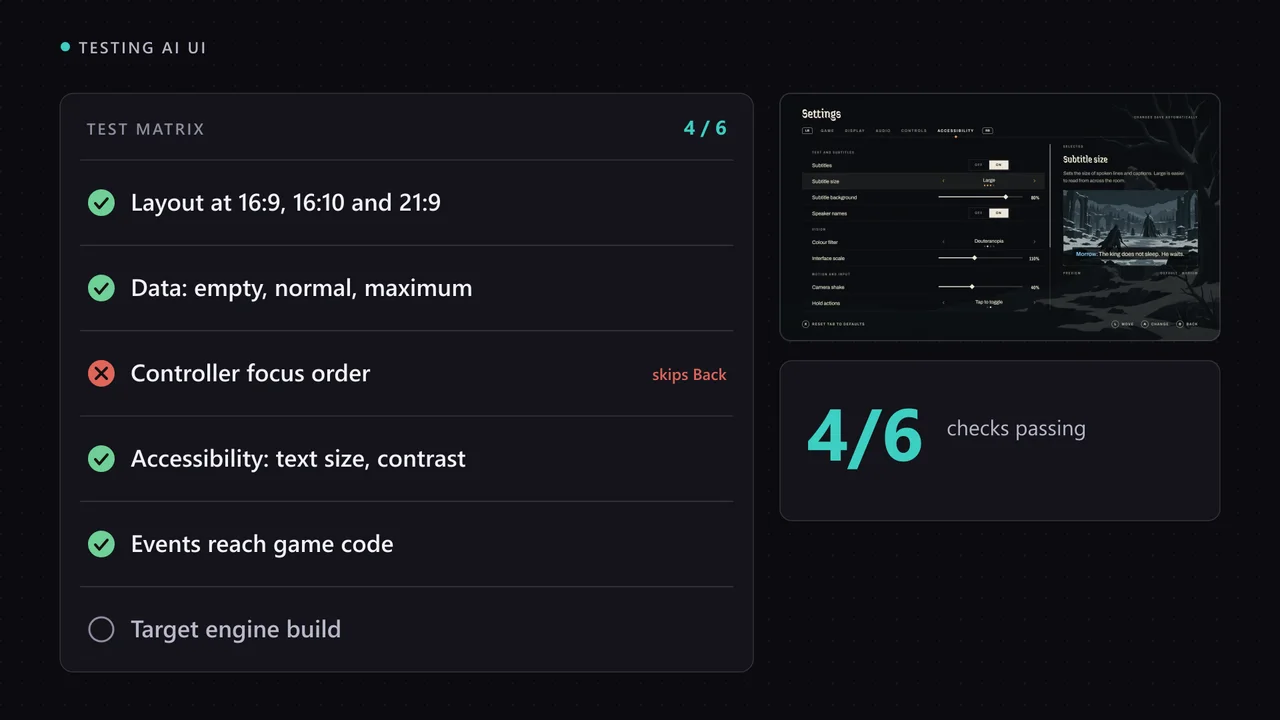
A menu can match a reference image and still be unusable. The focused button may be hidden, a disabled control may still emit an event, or the HUD may show sample health instead of the player’s real health. An AI-generated screen needs the same review as a hand-built one.
Start with one end-to-end path. Open the pause menu, navigate to Resume without a mouse, activate it and confirm that gameplay resumes. A visible button and a passing schema check are not substitutes for that result.
Build a small, useful test matrix
Use your actual target platforms and minimum supported size. The following is a starting matrix, not a certification checklist:
| Area | Case | Observe |
|---|---|---|
| Layout | Target desktop size and smallest supported window | Text fits; important controls stay visible |
| Data | Zero, normal, maximum and missing values | Correct value and sensible fallback |
| Input | Mouse, keyboard and supported controller | Visible focus and reachable controls |
| State | Normal, focused, pressed, disabled, error | State is distinguishable and correct |
| Language | Long translation and missing glyph | No clipped critical text or unreadable fallback |
| Integration | Valid action and rejected action | Game handles the event and reports the result |
Record the engine version, viewport, input method and data used. A report that says “inventory broken” is harder to reproduce than “at 1280 × 800, keyboard focus remains on a hidden item after the inventory closes.”
Test layout with difficult content
Populate a screen with a long player name, a full inventory, an empty inventory and a large number. Verify that dynamic text stays inside its intended space without covering controls. Resize the game window or run the target device profile; then repeat the main interaction.
Screenshots are useful when the viewport, data and font are controlled. Compare at the same size and inspect the differences. A changed font, a late-loading image or animation timing can produce a large image diff without indicating the same kind of defect as a missing button. Keep the reference and the setup alongside the result.
If the target engine uses a different text renderer, do not assume a browser screenshot proves the final layout. Envy documents known differences between its runtimes, including fonts, clipping and focus search.
Check focus as a path, not a property
Start without touching the mouse. Is an appropriate control focused when the menu opens? Can you reach each action and see which one is selected? Close a modal and check that focus returns somewhere useful. Disable or hide a control and repeat the path.
In Godot, directional focus neighbors and next/previous focus determine navigation. The Godot controller navigation documentation explains how those relationships work. Test on a real controller when that is a supported input, including held directions and reconnecting during play.
Verify the contract against the game
For each event, ask three questions: did the UI emit it, did the game handle it, and did the player see the result? For each data path, change the source value in the game and verify the display updates. Include a failure case: a purchase rejected for insufficient currency should not look successful.
Let an agent create or run a test from the UI contract, but inspect what the test asserts. A test that only checks that the screen exists does not prove that its buttons work.
Use AI as a reviewer with boundaries
Give the agent a screen outline, the expected behavior and a short set of screenshots. Ask it to identify discrepancies and report uncertainty, with file and layer names where possible. Do not ask it to declare the screen accessible or production-ready from an image.
Have a person check readability, comprehension and motion. Automated checks can find some missing labels or contrast problems; they do not establish whether a player understands an objective while the screen is busy.
A practical Envy review
Envy’s handoff package contains the document and contract and can include screen renders. Use those as reference material, validate edits, then run the exported UI in the target Godot, Unity or web project. Preview is useful for sample data and event inspection, but it does not replace the game build, device and input tests.
Keep the result as a short checklist with evidence and open issues. That makes the next AI-assisted revision faster to review without treating the agent’s own confidence as a test result.
Questions people ask
Is a screenshot enough to test a game menu?
No. A screenshot can reveal visual problems at one moment, but it cannot verify focus order, event handlers, saved settings, error states or controller behavior.
What should I test first in an AI-generated UI?
Start with the main path: open the screen, navigate it, activate its primary control and verify the game responds. Then test edge data, other resolutions and input methods.
Can AI agents automate game UI testing?
They can help generate cases, run available checks and compare outputs. A person still needs to judge readability and interaction, and the target engine and hardware need their own tests.