

Steam Deck UI checklist: text size, controls and screen sizes
For Steam Deck Verified, Valve requires that the smallest text is at least 9 pixels tall at 1280 × 800 (12 px recommended) and readable from 30 cm, that the default controller setup reaches all content including launchers, that on-screen glyphs match the controller, that text entry opens an on-screen keyboard, and that the game runs at a supported resolution, ideally 1280 × 800.
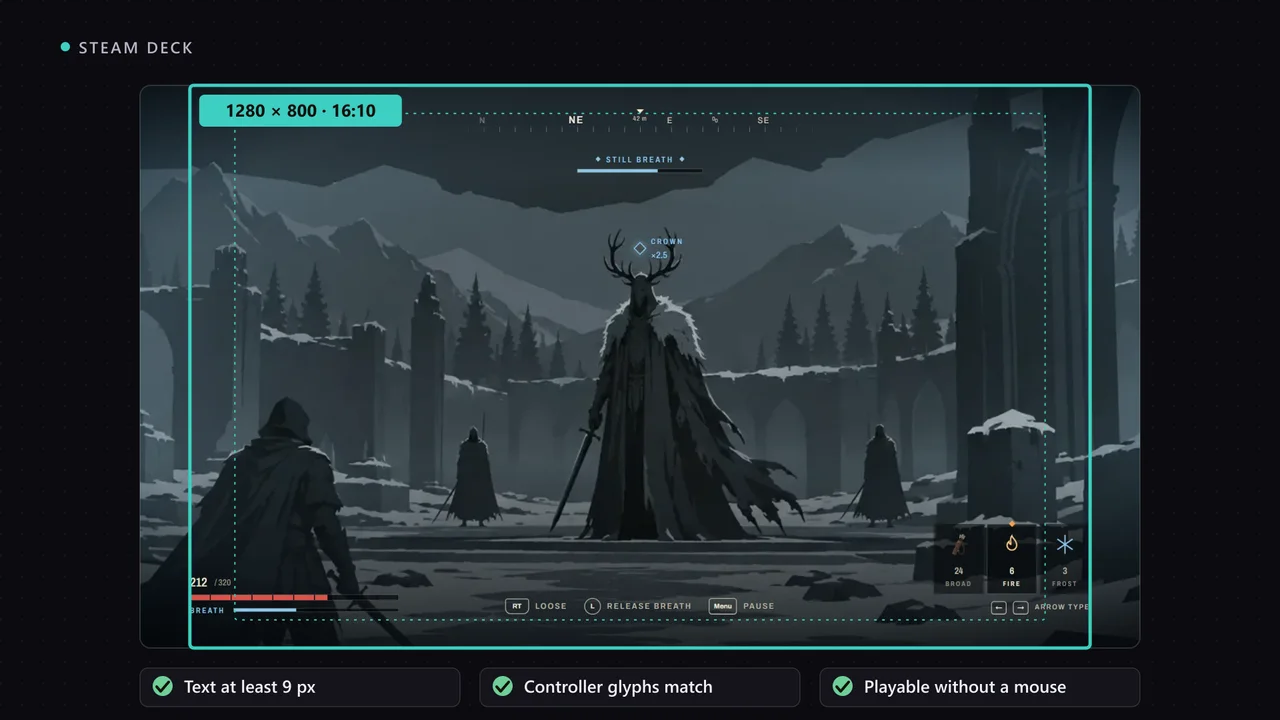
Most games that miss Steam Deck Verified don’t miss it on performance. They miss it on UI: text too small, a launcher that needs a mouse, keyboard prompts on a handheld. These are cheap to fix if you know the rules before you submit. This is the checklist we use, built from Valve’s Steam Deck compatibility review as of November 2026. Check that page for the current wording before you submit.
The rules that touch UI
| Area | What Valve checks |
|---|---|
| Text legibility | The smallest character is at least 9 px tall at 1280 × 800. Valve recommends 12 px. Text is readable at 30 cm (12 in) |
| Controller support | The default controller configuration reaches all content, with no in-game settings changed first |
| Controller glyphs | On-screen glyphs match the active input. No keyboard or mouse glyphs while the player uses the Deck’s controls |
| Text input | Text entry opens the on-screen keyboard through Steamworks, or the game has its own controller-only entry |
| Launchers | Any launcher meets the same rules, including full controller navigation |
| Resolution | The game runs at a supported resolution. 1280 × 800 is preferred, 1280 × 720 is fine |
| Warnings | The game doesn’t tell the player the Deck is unsupported |
Performance has its own rule: the default settings should reach a playable frame rate, which Valve describes as 30 fps at 800p.
1. Text size: do the math for your design resolution
The 9 px rule is measured on the Deck’s screen, not in your editor. If you design at 1920 × 1080 and scale to fit, the Deck shows your UI at about two-thirds size. So:
| Design resolution | 9 px on Deck (minimum) | 12 px on Deck (recommended) |
|---|---|---|
| 1280 × 800 | 9 px | 12 px |
| 1920 × 1080 | about 14 px | about 18 px |
| 2560 × 1440 | about 18 px | about 24 px |
The smallest text is usually not the body copy. Look for:
- footnotes and version numbers on the title screen,
- item counts in inventory corners,
- stat labels on tooltips,
- button prompt labels (“Equip”, “Drop”),
- debug-looking HUD numbers like coordinates or timers.
A text size setting in options helps, but the default has to pass on its own.
2. Controller: every screen, no mouse
Unplug the mouse and go through:
- the launcher, if there is one,
- the title screen, new game, load game,
- every menu and submenu, every tab,
- every popup and confirmation dialog,
- character creation, the map, the shop, the credits,
- quitting back to the title and out of the game.
Each screen needs a focused element when it opens, a visible focus ring, and a Back button that B presses. If you use Godot, our guide to gamepad navigation for Godot menus covers the usual traps.
3. Glyphs that follow the player
Show controller glyphs when the last input came from a controller, and keyboard glyphs when it came from the keyboard. Switch on the fly. On Steam, Steam Input can give you the right glyph for each action, which also handles players who remap buttons.
4. Text entry
If the game asks for text (save names, seeds, chat), it has to work without a keyboard. Steamworks has calls to show the on-screen keyboard over a text field. The alternative is your own controller keyboard in the game, in the player’s language.
5. The 16:10 screen
The Deck is 1280 × 800, which is 16:10. A UI built only for 16:9 gets bars at the top and bottom, or worse, a HUD that hugs a corner that isn’t there. Anchor HUD groups to screen edges and test at 1280 × 800. Our Godot UI scaling guide explains anchors and stretch settings.
6. Small things that fail reviews
- A launcher window that only takes mouse clicks.
- An EULA or account screen with a scroll box the stick can’t scroll.
- A settings screen where the “Apply” button is unreachable by d-pad.
- Hover-only tooltips that never show for controller players.
- “Press Esc to pause” text.
- A pop-up that opens with no button focused.
A test plan before you submit
- Set your game to 1280 × 800 windowed on your PC.
- Turn on the smallest text setting you ship, and find the smallest text on every screen. Measure it in a screenshot.
- Play the first hour with a controller only, glyphs checked on each prompt.
- Enter text wherever the game asks for it.
- If you have a Deck, repeat on the device at arm’s length.
How Envy helps with Deck testing
Envy has a built-in Steam Deck 16:10 device profile at 1280 × 800. Pick it in Preview and the screen lays out at the Deck’s size with its anchors, so you can see the HUD hold its corners and check text at real size. Every button can take gamepad focus, with a first-focus button per screen, Back buttons that Escape and gamepad B press, and a focus ring. Envy doesn’t measure text size for you, so check the smallest text by eye in Preview at 1280 × 800. See device profiles and keyboard and gamepad focus.
Questions people ask
What is the minimum font size for Steam Deck Verified?
Valve says the smallest on-screen character must be at least 9 pixels tall at 1280 × 800, and recommends aiming for 12 pixels. Text must be readable from 12 inches (30 cm) away.
What resolution should my game use on Steam Deck?
Valve recommends 1280 × 800 (16:10), or 1280 × 720. It is a recommendation, but a 16:9 game shown on the 16:10 screen gets bars or needs its UI to stretch, so supporting 16:10 is worth it.
Do I need Steam Deck button glyphs?
Glyphs must match the input the player is using. Keyboard and mouse glyphs must not appear when the player is using the Deck's controls. Steam Input can tell you which glyph to show for each action.
Does my game need an on-screen keyboard on Steam Deck?
Only if it asks for text, like a save name or a chat message. Then it must either open Steam's on-screen keyboard through the Steamworks API or offer its own text entry that works with a controller alone.