

Godot UI scaling: anchors, containers and every screen size
For most Godot 4 games, set Display › Window › Stretch › Mode to canvas_items and Aspect to expand, design at 1920 × 1080, and pin every UI group to the edge it belongs to with anchors. Inside groups, let containers do the layout. Anchors usually "stop working" because the parent Control has no real size or a container is overriding them.
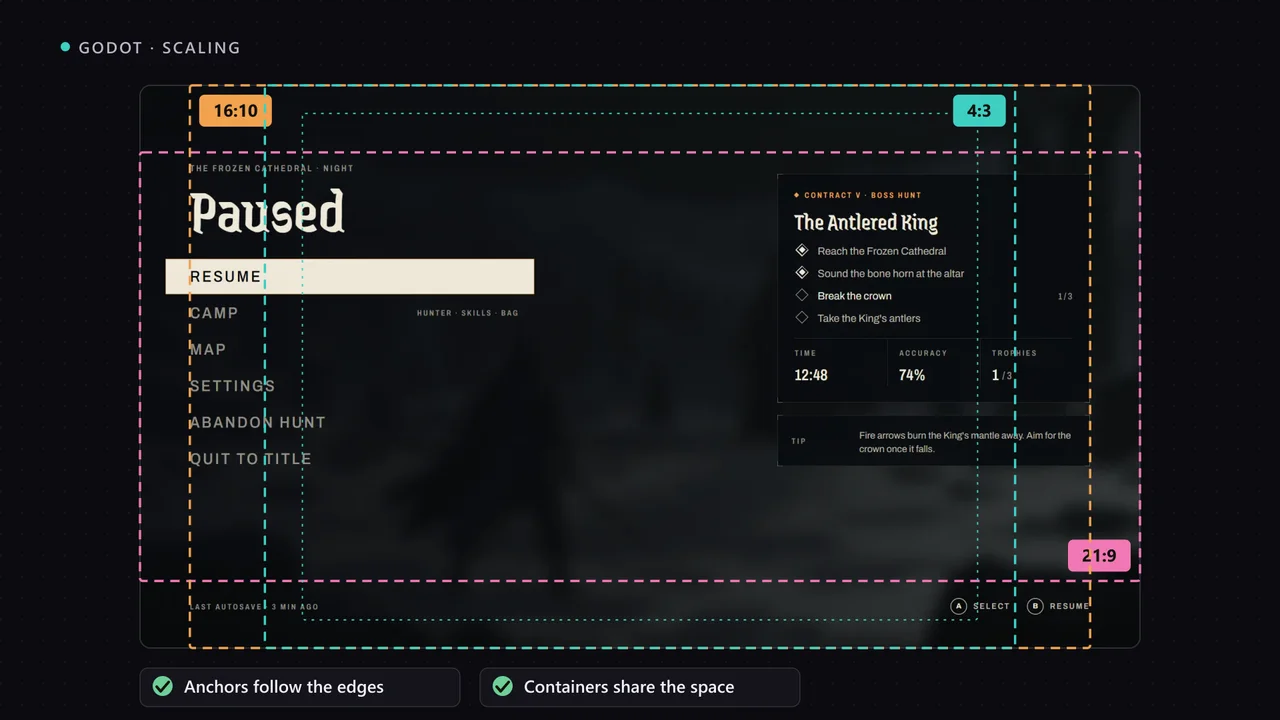
Godot’s UI system is powerful and a little unforgiving. A menu looks right at 1920 × 1080, then on a Steam Deck the buttons overlap, on an ultrawide monitor the health bar floats in the middle of nowhere, and on a 4:3 screen the title runs off the edge. Almost every one of these comes from three settings: the stretch mode, the anchors, and which nodes are inside containers.
Step 1: pick the stretch mode once
Open Project Settings › Display › Window. Under Size, set the viewport width and height to the resolution you design at. Under Stretch, set Mode and Aspect.
| Your game | Base size | Mode | Aspect |
|---|---|---|---|
| 2D or 3D, not pixel art | 1920 × 1080 | canvas_items |
expand |
| Pixel art | 640 × 360 | viewport |
keep or expand, with integer scale |
| Mobile, landscape | 1280 × 720 | canvas_items |
expand |
| UI-heavy (strategy, sims) | as above | as above | consider keep_width |
These are the setups the Godot multiple resolutions guide recommends. With canvas_items, Godot scales your 1920 × 1080 layout to the window and draws text and vectors at the real resolution, so a 4K screen stays sharp. With expand, the extra space on a wider or taller screen goes to the viewport instead of black bars. Anchors decide what happens in that space.
Step 2: anchors decide where each group goes
Every Control has four anchors: left, top, right and bottom. Each is a fraction of the parent’s rectangle, from 0 to 1. Offsets are pixels added on top.
| Anchors (left, top, right, bottom) | The node… |
|---|---|
| 0, 0, 0, 0 | stays at the top-left corner |
| 1, 0, 1, 0 | stays at the top-right corner |
| 0.5, 0.5, 0.5, 0.5 | stays centered |
| 0, 1, 1, 1 | stretches along the bottom edge |
| 0, 0, 1, 1 | fills the parent |
The Anchor Preset menu in the 2D toolbar sets these for you. Pick the preset first, then move the node. Godot updates the offsets, so the node keeps its distance from the edge it is anchored to.
The rule of thumb for a game screen: anchor groups, not single widgets. The minimap container goes top right. The health and stamina group goes bottom left. The objective tracker goes top left. When the screen gets wider, each group stays in its corner and the middle opens up for the game.
Step 3: containers lay out what is inside a group
Inside a group, use containers:
- HBoxContainer and VBoxContainer stack children in a row or a column.
- MarginContainer adds padding, which is also how you keep UI inside a TV’s safe area.
- GridContainer for inventories and button grids.
- CenterContainer, AspectRatioContainer and ScrollContainer for the cases their names describe.
A child of a container gives up control of its own position. The Godot container docs are clear on this. You set the child’s size flags instead: Fill, Expand and Shrink (begin, center or end) on each axis, plus a Custom Minimum Size when it shouldn’t get squashed.
Why Godot anchors stop working
These cover most “godot anchors not working” threads.
- The parent has no size. Anchors are fractions of the parent. If the root of your UI scene is a Control with the default size, or a Control placed under a Node2D, the fractions are of a tiny rectangle. Make the root Full Rect.
- A container owns the node. If the node sits directly inside an HBoxContainer or VBoxContainer, its anchors are ignored. Wrap it in a plain Control if it needs to be placed freely.
- You moved the node after anchoring. Anchoring and then dragging the node or typing a position leaves offsets that pull against the anchors. Reset with the preset again, then adjust the offsets.
- The UI isn’t under a CanvasLayer. A Control placed in the game world moves with the camera and has no screen edges to anchor to. Put HUDs and menus under a CanvasLayer (see our Godot 4 Control nodes and CanvasLayer guide).
- The text grows and pushes things around. A Label with autowrap inside a container changes height when its text changes. Give it a minimum size, or clip it.
Test against real screen sizes
Change the window size while the game runs (Project Settings › Display › Window › Size › Window Width/Height Override is handy for this) and check at least these:
| Screen | Size | Aspect | What tends to break |
|---|---|---|---|
| Desktop | 1920 × 1080 | 16:9 | Nothing, it’s what you designed for |
| Steam Deck | 1280 × 800 | 16:10 | Text too small, bottom HUD too low |
| Ultrawide | 2560 × 1080 | 21:9 | Center-anchored HUD floats away from corners |
| Old monitor or iPad | 1024 × 768 | 4:3 | Side panels overlap the middle |
For the Deck in particular, Valve’s text size rule is strict. See our Steam Deck UI checklist.
Let players scale the UI
A UI scale setting helps on handhelds, TVs and big monitors alike. With canvas_items, one line does it:
func set_ui_scale(value: float) -> void:
	get_window().content_scale_factor = clampf(value, 0.75, 1.5)
Anchors keep every group in its corner as it grows. Check the largest scale on the smallest screen you support, because that’s where groups start to collide.
How Envy handles layout
Envy uses the same model on purpose. Layers have anchors from 0 to 1 and pixel offsets, and auto layout works like Godot’s box containers. When the Godot runtime builds the screen, auto layout becomes real HBoxContainer and VBoxContainer nodes and anchors become Control anchors. In the editor you can drag the screen’s edge or switch Preview to Steam Deck, ultrawide or 4:3 sizes and watch each group hold its place. The layout docs show the anchors box and the device profiles.
Questions people ask
What stretch mode should I use for Godot UI?
canvas_items with the expand aspect, for most games that aren't pixel art. The UI renders at the screen's real resolution and the viewport grows on whichever axis has extra room. For pixel art, use the viewport mode with integer scaling.
Why are my Godot anchors not working?
The three usual causes: the parent Control has no size (often a root that isn't Full Rect), the node is the child of a container that sets its position for it, or the node's position was dragged after the anchors were set, which leaves offsets that fight the anchors.
How do I add a UI scale slider in Godot?
Set get_window().content_scale_factor from the slider value, for example between 0.75 and 1.5. With the canvas_items stretch mode it scales 2D elements, the UI included.
Should I use containers or anchors in Godot?
Both. Anchors place a group on the screen (a menu on the left, a minimap top right). Containers lay out what is inside the group. A child of a container gives up control of its own position, so don't try to anchor it.