

Godot MCP setup guide: connect Claude Code and Codex to Godot 4
A Godot MCP server exposes Godot project tools, scene inspection, and headless test runs to AI coding agents over the Model Context Protocol. Configure Claude Code in .mcp.json or OpenAI Codex in .codex/config.toml, start read-only, and keep visual UI edits behind a schema-validated UI server so agents never corrupt screen layouts.
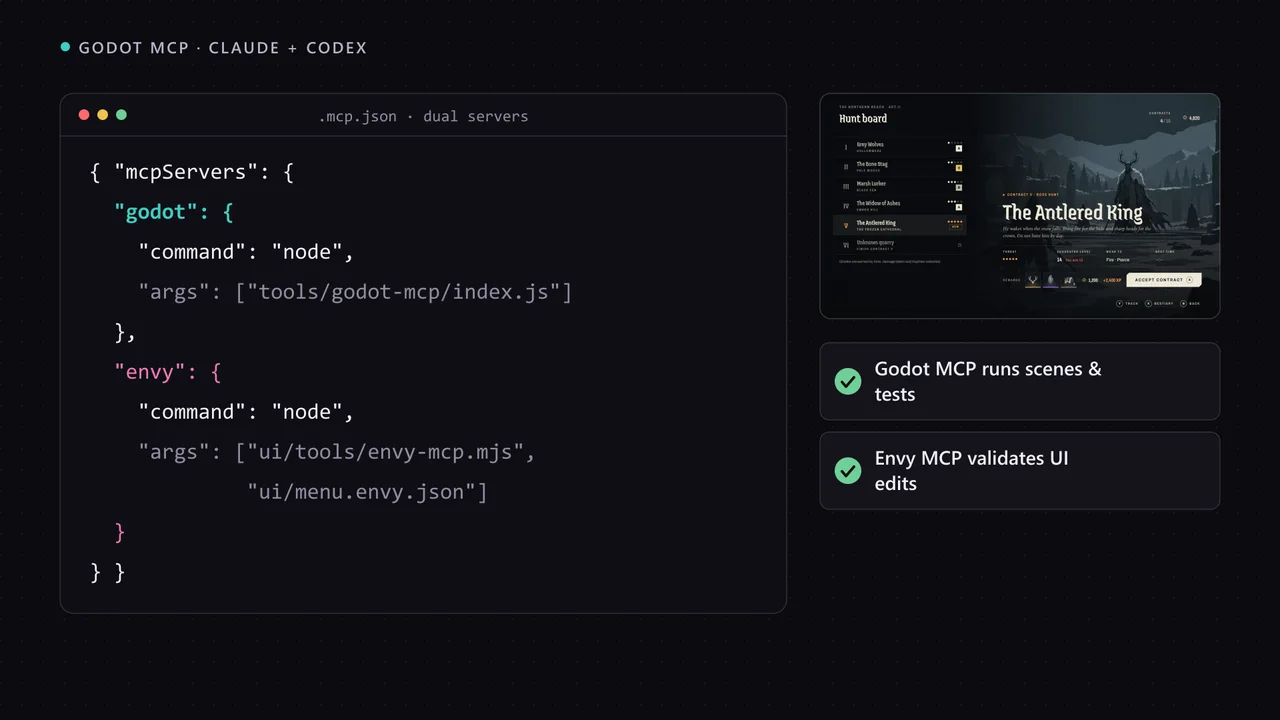
Connecting Claude Code or OpenAI Codex directly to Godot 4 changes how fast an agent can inspect scenes, read runtime logs, and run tests. The risk shows up when that same agent starts rewriting .tscn UI trees directly, turning anchored Control menus into fragile pixel coordinates. Separating engine work from UI layout gives you the speed of a Godot MCP server without broken screens.
What a Godot MCP server actually does
A Godot MCP server acts as a typed bridge between an AI coding client and your Godot 4 project over the Model Context Protocol. Rather than parsing raw .tscn text files by hand or running blind shell commands, the agent invokes declared tools that list scenes, inspect node properties, edit scripts, or launch the engine.
Community Godot MCP implementations fall into three distinct architectures, and each fits a different workflow:
| Server kind | Needs open Godot editor | Best suited for | Main failure mode |
|---|---|---|---|
| CLI and file-based Godot MCP | No (invokes godot --headless) |
CI checks, running test scenes, reading project structure, capturing stdout logs | Cannot inspect live runtime state inside an active editor session |
| Editor-plugin Godot MCP | Yes (runs an EditorPlugin bridge) |
Live scene inspection, runtime node tree queries, editor viewport screenshots | Tight coupling to a specific Godot 4 minor version; stale plugin sockets |
| UI-contract MCP (such as Envy MCP) | No (edits .envy.json / .envy files) |
Placing kit components, updating text/tokens, checking schema and contract rules | Does not edit GDScript gameplay code or 3D/2D world nodes |
Most teams end up pairing either a CLI or editor-plugin Godot MCP server for gameplay engineering with a stricter boundary around menus and HUDs.
Set up Godot MCP in Claude Code
Claude Code reads project-level MCP servers from .mcp.json in the root of your Godot repository. Putting the server config in .mcp.json rather than a global user file keeps arguments scoped to the project folder and lets you commit safe defaults for everyone working on the game.
Before registering any Godot MCP server, check three prerequisites on your machine:
- Verify
godotworks from your terminal and matches your project’s Godot 4 version (see Godot’s command line tutorial). - Confirm the Node.js or Python runtime required by your chosen server is installed on
PATH. - Commit or stash existing
.tscnand.gdchanges in Git so every agent edit appears in a clean diff.
Create .mcp.json at the root of your Godot project. Replace the server package or script path with the Godot MCP implementation you audited:
{
  "mcpServers": {
    "godot": {
      "command": "node",
      "args": ["tools/godot-mcp/dist/index.js", "--project", "."],
      "env": {
        "GODOT_PATH": "godot"
      }
    }
  }
}
If you prefer registering the server from the terminal instead of writing .mcp.json by hand, Claude Code’s CLI writes the same config for you:
claude mcp add --scope project godot -- node tools/godot-mcp/dist/index.js --project .Restart or start Claude Code inside the project directory and ask it to list the tools exposed by godot and summarize your main scene without editing files yet.
Set up Godot MCP in OpenAI Codex
OpenAI Codex reads MCP definitions in TOML rather than JSON, either per repository in .codex/config.toml or globally in ~/.codex/config.toml. Keeping the configuration in .codex/config.toml restricts the server arguments to that single Godot project and avoids pointing an agent at the wrong game directory.
Add a [mcp_servers.godot] table inside .codex/config.toml:
[mcp_servers.godot]
command = "node"
args = ["tools/godot-mcp/dist/index.js", "--project", "."]

[mcp_servers.godot.env]
GODOT_PATH = "godot"
Two practical rules prevent surprises across both Claude Code and Codex:
- Pin explicit relative paths or project roots. Never point a server at
/or your entire home folder. - Avoid global auto-approve for write tools. Allow read tools (
list_scenes,get_node,run_tests,capture_screenshot) freely, while requiring confirmation for tools that mutate.tscnfiles or project settings.
How to choose a Godot MCP server
Because dozens of community godot-mcp packages exist on GitHub and MCP registries, evaluate a server against five concrete checks before connecting it to a real game:
- Exact Godot 4 compatibility: A server built for Godot 4.2 or 4.3 may rely on CLI flags,
EditorInterfacemethods, or UID formats that behave differently in Godot 4.6. Check the server’s tested engine range and run its read tools on a scratch scene first. - Transport simplicity (
stdiovs local HTTP/WebSocket): Localstdioservers start when the agent starts and exit when the session ends. Editor plugins that open a local WebSocket or HTTP port require the Godot editor to stay open and can reject connections after an editor reload. - Headless run and screenshot support: The highest-value feature in any Godot MCP setup is running the game or a test scene and returning console errors plus a screenshot. Servers that only wrap text file reads add little over normal agent file access.
- Input validation and error messages: Good servers fail fast when given an invalid node path or type instead of writing broken
.tscnproperties that fail only when you next open Godot. - Active maintenance and source readability: Read the server’s tool definitions before installing. Prefer small, readable codebases where you can verify no network calls or outside-repo file writes occur.
Where scene-level Godot MCP breaks on UI
Even a well-built Godot MCP server struggles when you ask an agent to build or restyle menus and HUDs by mutating .tscn Control hierarchies. The problem is rarely syntax; it is layout and UX intent that raw scene properties do not capture cleanly:
- Broken anchor and container rules: Agents frequently switch
layout_modeor set explicitoffset_left/offset_toppixel positions instead of anchoring insideMarginContainer,VBoxContainer, andHBoxContainer, which looks acceptable at 1920x1080 and overlaps on 16:10 or 21:9. - Lost theme consistency: Adding a quick
add_theme_color_overrideon three buttons makes a scene compile while quietly detaching it from your shared.tresThemeresource. - Silent gamepad dead-ends: Adding a modal panel or button through scene tools rarely sets
focus_neighbor_top/focus_neighbor_bottomor callsgrab_focus.call_deferred()when the panel opens, leaving controller players unable to navigate. - Code-versus-design drift: Once an agent edits a
.tscnUI tree directly, re-exporting from a visual design file overwrites the agent’s tweaks or forces manual merges.
Keeping gameplay scenes under your Godot MCP server while routing UI structure through a contract avoids all four issues. See the AI agents game UI guide and safer MCP workflow for how that split works in practice.
Pairing a Godot MCP server with Envy MCP
When you separate engine logic from UI layout, two focused MCP servers work side by side in the same .mcp.json. Envy exports an AI handoff package containing your .envy.json UI document, the MIT-licensed addons/envy_ui Godot runtime, contract.json, AGENTS.md, typed GDScript controller code, and Envy’s zero-dependency Node MCP server (tools/envy-mcp.mjs).
In this setup, your general Godot MCP server inspects gameplay nodes, edits .gd scripts, and runs the game, while Envy’s MCP server edits and validates only the UI document:
{
  "mcpServers": {
    "godot": {
      "command": "node",
      "args": ["tools/godot-mcp/dist/index.js", "--project", "."]
    },
    "envy": {
      "command": "node",
      "args": ["ui/handoff/tools/envy-mcp.mjs", "ui/menu.envy.json", "--root", "ui/handoff"]
    }
  }
}
Every write tool in Envy’s MCP server (patch_node, add_node, add_instance, set_translation, patch_animation) runs full schema and document checks before saving; any edit that breaks a token reference, screen link, focus target, or nesting depth is refused while leaving the file untouched. Your agent reads list_contract to see the exact event names (ui_event) and data paths (set_data) to wire in GDScript, and calls render_screen_png when Chromium is available to check its work visually. Start envy-mcp.mjs with --readonly while exploring a document, and check the Envy agent docs, Godot runtime guide, and MCP troubleshooting checklist if a server refuses a path or edit. For cross-engine teams, see the companion Unity MCP setup guide.
Questions people ask
What is a Godot MCP server?
A Godot MCP server implements the Model Context Protocol so an AI coding agent such as Claude Code or Codex can call structured tools instead of guessing scene file formats. Depending on the server, those tools inspect the scene tree, add or modify nodes, read project settings, launch headless runs, and capture screenshots.
How do I connect Claude Code to Godot with MCP?
Add a project-scoped .mcp.json file at the root of your Godot repository with an mcpServers entry pointing to your server command and project path, or register it with claude mcp add. Keep the configuration inside the repository so teammates share the same paths and permissions.
Can Codex CLI use a Godot MCP server?
Yes. OpenAI Codex reads MCP server definitions from .codex/config.toml in the project or ~/.codex/config.toml globally using [mcp_servers.<name>] tables with command and args keys.
Should one Godot MCP server edit both gameplay scenes and game UI?
Separating them is safer. General Godot MCP servers are great for inspecting node hierarchies, wiring signals, and running tests, while raw .tscn edits on Control menus often break anchor presets, container sizing, and gamepad focus neighbors.