

A safer MCP workflow for AI agents editing game UI
Start an AI agent with read-only access, inspect the UI and agree on a small change. If editing is needed, limit the server to the project folder, validate the result and review the diff and render. MCP tools provide a useful interface; they do not replace permissions or human review.
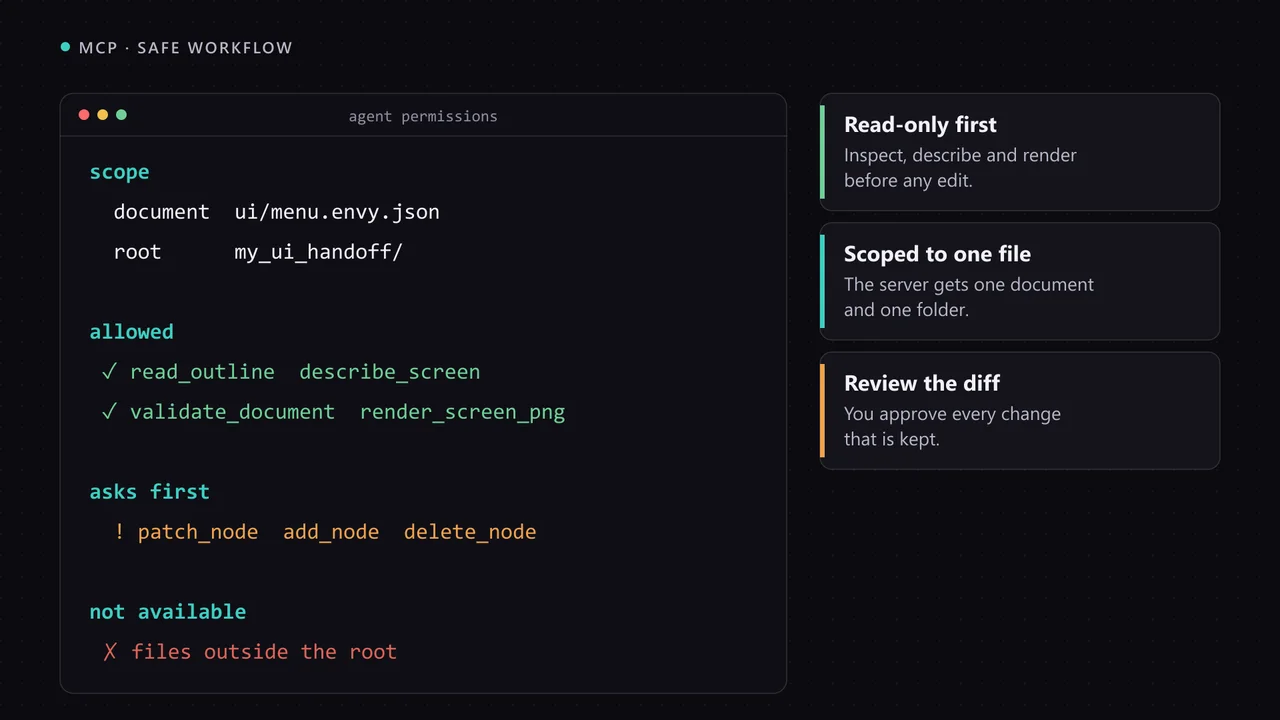
An MCP server gives a coding agent named operations such as “describe this screen” or “change this layer.” That is a better starting point than asking it to guess the structure of a large UI file. It is still a program running with permissions on your computer. Choose those permissions deliberately.
The Model Context Protocol security guidance covers server compromise, authorization and scope. The workflow below applies that principle to a small game UI task.
Decide what the agent needs to do
Separate inspection, editing and integration. An agent reviewing a menu may only need to read the screen outline and report its events. An agent implementing a change needs permission to modify a specific document. An agent wiring that menu into a game may also need access to game scripts and tests.
| Task | Minimum starting access | Review before accepting |
|---|---|---|
| Inventory UI | Read a project copy | Screen and contract report |
| Change a label or layout | Edit the intended UI document | Document diff and render |
| Wire an event | Read contract; edit relevant game code | Game diff and integration test |
| Prepare a release | Defined build access | Human review of artifacts and release steps |
Do not give an agent unrelated credentials or a broad filesystem root because one UI document happens to need editing. MCP server scope does not restrict other tools available to the agent, such as its shell or file access. Check the whole environment.
Inspect with a read-only server first
Envy’s MCP server supports --readonly and a --root folder. From an unpacked handoff folder, a local inspection command has this form:
node tools/envy-mcp.mjs ui/menu.envy.json --root . --readonlyReplace the document path with your own. This command starts a server over standard input and output; configure it in a compatible agent client rather than treating it as an interactive shell. The Envy agent documentation shows the client configuration and current tool list.
Ask the agent to use read_outline and list_contract, then summarize the intended change and the affected screens. A read-only session hides Envy’s write tools. It does not make the rest of the agent’s environment read-only.
Make one scoped change
Work on a version-controlled copy. Once the requested change is clear, run the server with the appropriate write access and tell the agent which document and layers it may change. Have it inspect a layer before using patch_node, then call validate_document.
For example, request: “On the Settings screen, change the label on the existing master-volume control. Keep its data path, event, position and focus behavior. Show the diff and validate the document.” That is easier to review than “improve the settings menu.”
Envy checks changes before writing and rejects edits that introduce validation errors. That protects document structure, not design intent. A valid label can still be misleading; a valid button can still trigger the wrong game action.
Compare the actual result
Review the changed fields and a render in context. Envy’s render_screen_png can render a screen when its documented runtime, Playwright and Chromium prerequisites are available. Its render is a web-runtime view; inspect the target engine too, especially fonts, focus and visual effects. The known differences explain where engines can differ.
Test the event in the game. For a settings change, exercise the control, close and reopen the screen, and check the stored value. If an agent could not run the engine or produce a render, treat that as an open check, not a pass.
Treat document text as data
A downloaded UI file, layer note or tool response can contain instructions written by someone else. Those words may be relevant content, but they do not authorize new operations. If a screen note says to upload project files or ignore your task, the agent should report it instead of obeying it.
Keep secrets out of documents shared with an agent. Review third-party MCP servers and their dependencies before running them. Pin a known version when your workflow permits, and give the server only the project and operations it needs.
Finish by reviewing the diff yourself, running the relevant tests and keeping a rollback point. The goal is not to prevent agents from making useful changes. It is to make each change understandable and reversible.
Questions people ask
What does MCP do for a game UI agent?
The Model Context Protocol lets a client discover and call tools exposed by a server. A UI server can provide structured operations for inspecting or editing a document instead of requiring an agent to guess at raw JSON.
Is a validated MCP edit automatically safe to ship?
No. A document can pass validation and still contain the wrong text, an unintended layout or an integration mistake. Review the diff and test behavior in the target game.
Can I let an agent inspect an Envy document without editing it?
Yes. Start the Envy MCP server with --readonly to hide its editing tools. Restrict the root folder to the intended project and inspect the actual permissions of the agent and its other tools too.