

How to build an inventory system in Godot 4: Resources, GridContainer, clear and reset
Build a Godot 4 inventory system by keeping item stacks inside a custom Resource with a changed signal and rendering fixed slot Buttons inside a GridContainer. Updating existing slot nodes instead of freeing and recreating children preserves gamepad focus, while clear and reset methods refill null entries and duplicate starter assets safely.
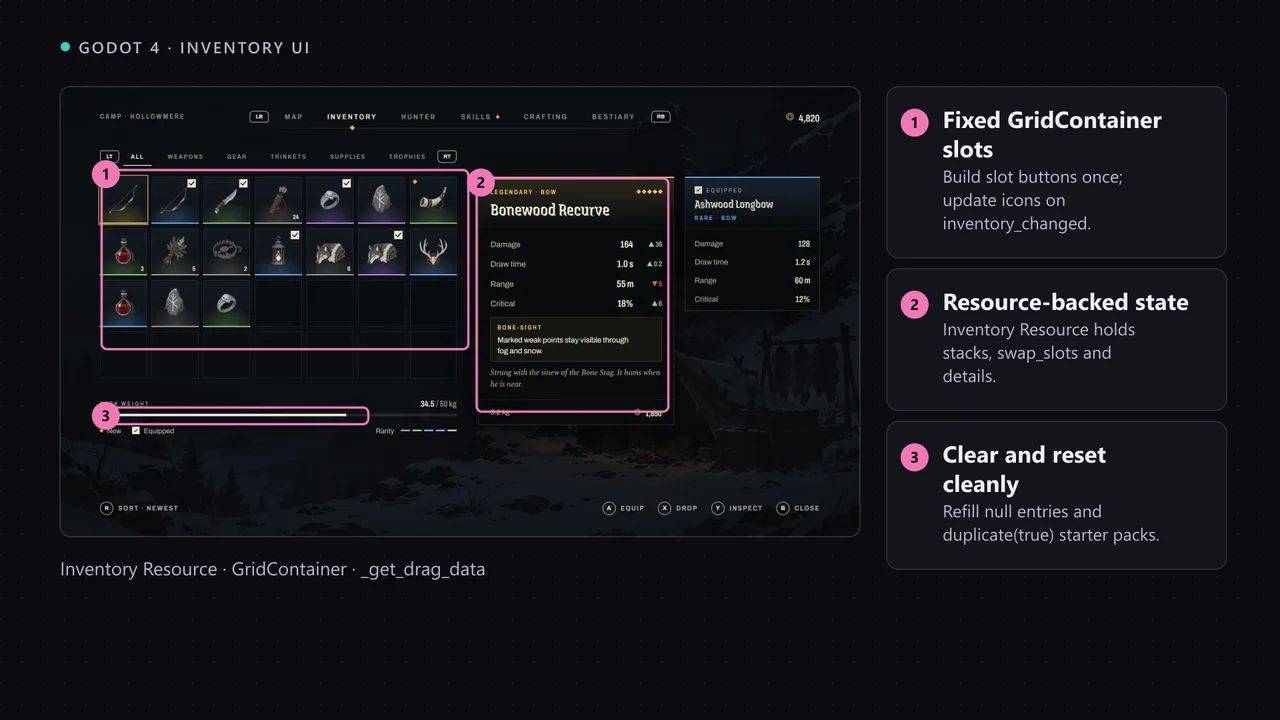
Most Godot inventory tutorials break as soon as the player drops an item, switches scenes, or restarts a run. When item counts live inside TextureRect or Label nodes under a GridContainer, closing the menu loses state and calling queue_free() on slot children steals gamepad focus. Separating a custom Resource data layer from fixed GridContainer slot buttons solves stacking, clearing, resetting, drag-and-drop, and controller focus together.
Separate inventory data from UI nodes
A reliable Godot 4 inventory splits into two layers: a custom Resource holding an array of item stacks and emitting an inventory_changed signal, and a GridContainer scene that only listens to that signal and requests actions. Following Godot’s nodes and resources guide, keeping data in Resource files lets you inspect starter inventories in the Inspector, save them cleanly, and test stacking logic without opening a UI scene.
First, define an item definition (item_data.gd):
class_name ItemData
extends Resource

@export var id: StringName
@export var display_name: String
@export var icon: Texture2D
@export_range(1, 999) var max_stack: int = 99
@export_multiline var description: String = ""
Next, create a lightweight stack class (inventory_slot.gd):
class_name InventorySlot
extends Resource

@export var item: ItemData
@export_range(1, 999) var quantity: int = 1
Now build the Inventory Resource (inventory.gd) with stacking, slot swapping, and a fixed slot count:
class_name Inventory
extends Resource

signal inventory_changed

@export var capacity: int = 20
@export var slots: Array[InventorySlot] = []

func ensure_size() -> void:
	if slots.size() != capacity:
		slots.resize(capacity)

func add_item(item: ItemData, amount: int = 1) -> int:
	if item == null or amount <= 0:
		return amount
	ensure_size()
	var remaining := amount

	# Fill partial stacks first.
	for i in capacity:
		var slot := slots[i]
		if slot != null and slot.item == item and slot.quantity < item.max_stack:
			var space := item.max_stack - slot.quantity
			var added := mini(space, remaining)
			slot.quantity += added
			remaining -= added
			if remaining == 0:
				inventory_changed.emit()
				return 0

	# Place leftovers into empty slots.
	for i in capacity:
		if slots[i] == null:
			var added := mini(item.max_stack, remaining)
			var next_slot := InventorySlot.new()
			next_slot.item = item
			next_slot.quantity = added
			slots[i] = next_slot
			remaining -= added
			if remaining == 0:
				break

	inventory_changed.emit()
	return remaining

func swap_slots(from_index: int, to_index: int) -> void:
	ensure_size()
	if from_index == to_index:
		return
	if from_index < 0 or from_index >= capacity or to_index < 0 or to_index >= capacity:
		return
	var temp := slots[from_index]
	slots[from_index] = slots[to_index]
	slots[to_index] = temp
	inventory_changed.emit()
Returning remaining from add_item() lets the pickup in the world know whether all items fit or if any should stay on the ground when the pack is full.
Clear and reset an inventory cleanly
Two common mistakes appear when players die, start a new run, or dump a container: calling slots.clear() (which shrinks slots.size() to 0 and causes out-of-bounds crashes on slot indexing) and assigning starter .tres slot sub-resources directly without duplicating them (which overwrites the starter template in memory for the rest of the session).
Add explicit clear_inventory() and reset_to_starter() methods right inside inventory.gd:
func clear_inventory() -> void:
	ensure_size()
	for i in capacity:
		slots[i] = null
	inventory_changed.emit()

func reset_to_starter(starter_slots: Array[InventorySlot]) -> void:
	ensure_size()
	for i in capacity:
		if i < starter_slots.size() and starter_slots[i] != null and starter_slots[i].item != null:
			# duplicate(true) copies each InventorySlot so picking up items never mutates the starter preset.
			var copy := starter_slots[i].duplicate(true) as InventorySlot
			copy.quantity = mini(copy.quantity, copy.item.max_stack)
			slots[i] = copy
		else:
			slots[i] = null
	inventory_changed.emit()
Notice why this behaves reliably across restarts: slots keeps its exact capacity length, every unused index becomes null, and inventory_changed.emit() refreshes every UI slot button in one pass without deleting or recreating nodes. For persistence details, see Godot’s Resource class reference.
Build the GridContainer UI and slot scene
Build a predictable node tree where Godot’s GridContainer handles wrapping and uniform spacing automatically, while a side panel shows the focused item’s name and description (see our Godot 4 Control nodes and CanvasLayer guide if you need a refresher on containers and mouse_filter):
InventoryScreen (Control, Full Rect)
└─ MarginContainer (Full Rect, margins 64 px)
   └─ HBoxContainer (separation 24)
      ├─ PanelContainer (Left: grid frame)
      │  └─ GridContainer (%SlotGrid, columns = 5)
      └─ PanelContainer (Right: detail panel)
         └─ VBoxContainer
            ├─ Label (%ItemTitle)
            ├─ Label (%ItemDescription, autowrap = Word)
            └─ HBoxContainer
               ├─ Button (%ClearButton, text = "Clear")
               └─ Button (%ResetButton, text = "Reset")
For each grid cell, make a small SlotButton.tscn scene with a Button root (custom_minimum_size = Vector2(88, 88), clip_contents = true), a TextureRect child (%Icon, expand_mode = Ignore Size, stretch_mode = Keep Aspect Centered, mouse_filter = Ignore), and a bottom-right Label (%CountLabel, mouse_filter = Ignore). Setting mouse_filter = Ignore on child labels and icons ensures clicks and drag events always reach the Button.
Attach inventory_screen.gd to InventoryScreen so it instantiates the grid once in _ready() and updates slots in place whenever inventory_changed fires:
extends Control

@export var inventory: Inventory
@export var starter_loadout: Array[InventorySlot] = []
@export var slot_scene: PackedScene

@onready var slot_grid: GridContainer = %SlotGrid
@onready var item_title: Label = %ItemTitle
@onready var item_description: Label = %ItemDescription
@onready var clear_button: Button = %ClearButton
@onready var reset_button: Button = %ResetButton

var slot_buttons: Array[SlotButton] = []
var selected_index: int = -1

func _ready() -> void:
	inventory.ensure_size()
	inventory.inventory_changed.connect(_refresh)
	clear_button.pressed.connect(func():
		selected_index = -1
		inventory.clear_inventory()
	)
	reset_button.pressed.connect(func():
		selected_index = -1
		inventory.reset_to_starter(starter_loadout)
	)
	_build_slots()
	_refresh()

func open_menu() -> void:
	show()
	if not slot_buttons.is_empty():
		slot_buttons[0].grab_focus.call_deferred()

func _build_slots() -> void:
	for child in slot_grid.get_children():
		child.queue_free()
	slot_buttons.clear()

	for i in inventory.capacity:
		var btn := slot_scene.instantiate() as SlotButton
		btn.setup(i, inventory)
		btn.slot_activated.connect(_on_slot_activated)
		btn.focus_entered.connect(func(): _show_details(i))
		slot_grid.add_child(btn)
		slot_buttons.append(btn)

func _refresh() -> void:
	for i in slot_buttons.size():
		slot_buttons[i].display(inventory.slots[i], i == selected_index)
	var focused := get_viewport().gui_get_focus_owner()
	var idx := slot_buttons.find(focused)
	_show_details(idx if idx >= 0 else 0)

func _on_slot_activated(index: int) -> void:
	if selected_index == -1:
		if inventory.slots[index] != null:
			selected_index = index
			_refresh()
		return
	inventory.swap_slots(selected_index, index)
	selected_index = -1
	_refresh()

func _show_details(index: int) -> void:
	if index < 0 or index >= inventory.slots.size() or inventory.slots[index] == null:
		item_title.text = "Empty slot"
		item_description.text = "Select an item to inspect or swap it."
		return
	var item := inventory.slots[index].item
	item_title.text = item.display_name
	item_description.text = item.description
Because slot_buttons are built once in _ready(), clearing or swapping items never destroys the focused Button node, which keeps keyboard and controller focus steady.
Add gamepad focus and mouse drag-and-drop
Godot’s Control class includes virtual drag-and-drop hooks (_get_drag_data, _can_drop_data, _drop_data) that work automatically with mouse input inside SlotButton. Adding click-to-select-and-swap via _on_slot_activated above gives gamepad and keyboard players the exact same reordering ability without fighting a mouse cursor.
Implement slot_button.gd on the Button root of SlotButton.tscn:
class_name SlotButton
extends Button

signal slot_activated(index: int)

@onready var icon_rect: TextureRect = %Icon
@onready var count_label: Label = %CountLabel

var slot_index: int = -1
var inventory: Inventory

func setup(index: int, inv: Inventory) -> void:
	slot_index = index
	inventory = inv
	pressed.connect(func(): slot_activated.emit(slot_index))

func display(data: InventorySlot, is_selected: bool) -> void:
	if data == null or data.item == null:
		icon_rect.texture = null
		count_label.text = ""
	else:
		icon_rect.texture = data.item.icon
		count_label.text = str(data.quantity) if data.quantity > 1 else ""
	modulate = Color(1.0, 0.9, 0.65) if is_selected else Color.WHITE

func _get_drag_data(_at_position: Vector2) -> Variant:
	if inventory == null or inventory.slots[slot_index] == null:
		return null
	var preview := TextureRect.new()
	preview.texture = inventory.slots[slot_index].item.icon
	preview.custom_minimum_size = Vector2(64, 64)
	preview.expand_mode = TextureRect.EXPAND_IGNORE_SIZE
	preview.stretch_mode = TextureRect.STRETCH_KEEP_ASPECT_CENTERED
	set_drag_preview(preview)
	return { "inventory": inventory, "index": slot_index }

func _can_drop_data(_at_position: Vector2, data: Variant) -> bool:
	return data is Dictionary and data.has("inventory") and data.has("index")

func _drop_data(_at_position: Vector2, data: Variant) -> void:
	var source_inv := data["inventory"] as Inventory
	var from_index := int(data["index"])
	if source_inv == inventory:
		inventory.swap_slots(from_index, slot_index)
Notice two details that stop subtle drag bugs: returning null from _get_drag_data when a slot is empty prevents dragging blank previews, and using expand_mode = EXPAND_IGNORE_SIZE keeps high-resolution item icons from blowing up the drag preview to full texture size. For multi-panel focus rules around the Clear and Reset buttons, read our Godot gamepad UI navigation guide.
Build your own vs a Godot inventory plugin
Before installing a third-party Asset Library addon, compare what your game actually needs against the maintenance cost of an external system:
| Approach | Best for | Pros | Tradeoffs |
|---|---|---|---|
Custom Resource + GridContainer |
Slot-based RPG, action, survival, and card/deck inventories | Full control over save format, stacking, gamepad swap, and zero addon dependencies | Multi-cell Tetris shapes and networked replication require extra code |
| Godot inventory plugin (Asset Library) | Grid-packing (Resident Evil / Escape from Tarkov style) or full equipment + crafting trees | Spatial grid math, item databases, and debug editors pre-built | Upgrades lag behind Godot 4 releases; theming and custom controller UX can fight your project style |
Visual UI file + your own Resource |
Teams iterating on inventory cards, rarity pips, tooltips, and scaling | Design changes stay separate from GDScript; same layout works in Godot, Unity, and web | Your game code still owns Inventory stacking, persistence, and drag rules |
Designing the inventory screen in Envy
If you prefer keeping your Godot Inventory Resource as the data owner while designing the inventory screen, rarity pills, tooltips, and pack-weight bars on a visual canvas, Envy exports an MIT-licensed GDScript addon (addons/envy_ui) for Godot 4.6 and newer. You build one slot component, bind a Repeat frame to inventory.items with id as the stable key and Fill to for empty slots (see the lists documentation), and send an array of item dictionaries from GDScript:
ui.set_data("inventory.items", serialized_items)
ui.ui_event.connect(func(event, payload):
	if event == "item_selected":
		_on_slot_activated_by_id(payload)
)
Envy renders real Godot Control, GridContainer / FlowContainer, and Button nodes from the .envy.json document and hot-reloads edits while your game runs. Be clear on the boundary: Envy draws the repeated slots, hover tooltips, and focus order, while your Godot Inventory Resource still owns stacking, clear_inventory(), reset_to_starter(), save files, and drag-and-drop rules. See the Godot runtime guide and our walkthrough on wiring a Godot inventory UI with an AI agent for the contract layout.
Questions people ask
Should a Godot 4 inventory store items in Control nodes or a Resource?
Store items in a custom Resource (or autoload data model) and let GridContainer Control nodes only display that Resource. Keeping state out of UI nodes makes saving, stacking, clearing, and closing the inventory screen trivial without losing items.
How do you clear or reset an inventory in Godot 4 without leaving stale UI?
Keep slots as a fixed-length array matching inventory capacity, replace entries with null instead of calling Array.clear() (which shrinks size to zero), duplicate starter resources with duplicate(true) when resetting, and emit one inventory_changed signal so every slot button updates in place.
How do you make a GridContainer inventory work with a gamepad?
Build fixed Button slots once in _ready(), update their icons and labels without calling queue_free(), call slots[0].grab_focus.call_deferred() when the inventory opens, and offer a select-then-swap button action alongside mouse drag-and-drop.
Should I build my own Godot inventory system or use a plugin?
Build a lightweight Resource plus GridContainer system for slot-based RPG, survival, or action inventories under roughly 60 slots. Use a dedicated plugin when you specifically need Tetris-style multi-cell spatial packing, complex equipment sockets, or built-in multiplayer replication.