

Godot 4 UI tutorial: Control nodes, containers, CanvasLayer and mouse filters
In Godot 4, game interfaces are built from Control nodes anchored inside Container nodes and placed inside a CanvasLayer so they stay pinned to the viewport instead of drifting with the camera. Set full-rect layout wrappers to mouse_filter = Ignore so HUD containers never swallow clicks meant for the game world.
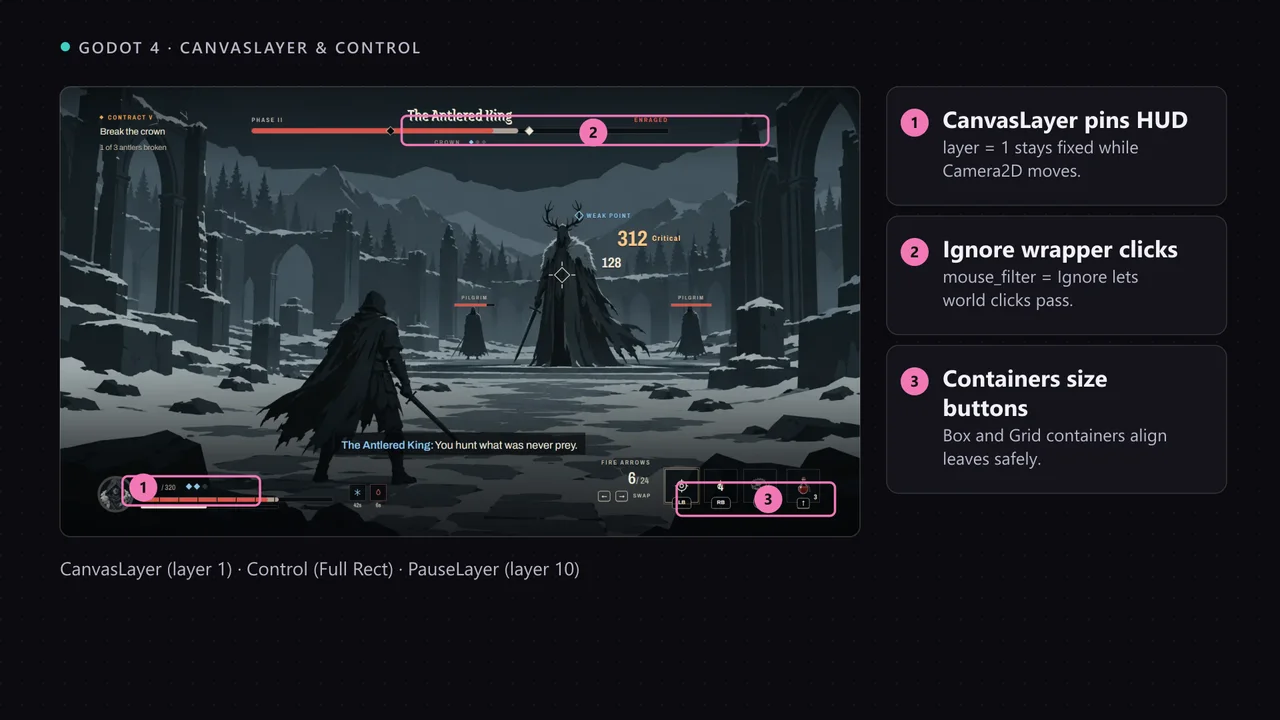
A common breaking point in Godot 4 UI happens the moment you add a Camera2D and a clickable object in the world: either the health bar slides off-screen when the player walks, or clicking anywhere on the screen stops reaching your units. Understanding how Control nodes, Container layout, CanvasLayer, and mouse_filter fit together prevents those bugs before you build a single screen.
How Control, Node2D and CanvasLayer fit together
Godot splits 2D scene elements into three distinct building blocks: Node2D for world objects, Control for screen-aligned UI boxes, and CanvasLayer for separating screen-space layers from the world camera. Mixing world nodes and UI nodes without a CanvasLayer is what causes HUDs to scroll away or get covered by sprites.
| Node type | Coordinate space | Camera transform applies | Handles containers and focus | Typical UI role |
|---|---|---|---|---|
Control |
Anchors + offsets inside parent rect | Yes, unless inside a CanvasLayer |
Yes (layout, themes, gamepad focus) | Root UI panels, labels, buttons, progress bars |
CanvasLayer |
Own viewport transform (layer integer) |
No (follow_viewport_enabled off by default) |
No (hosts a full-rect Control child) |
Separating HUD (layer = 1) and pause/modals (layer = 10) from the world |
Node2D |
World pixels (position, rotation) |
Yes | No | Player, enemies, tiles, world-space sprites |
See Godot’s UI system overview and CanvasLayers tutorial for how viewports composite multiple layers.
Set up a CanvasLayer HUD hierarchy
Place your HUD under its own CanvasLayer (layer = 1) and keep the first child a Control node set to Layout › Full Rect (anchors_preset = Full Rect). A CanvasLayer does not have a size rectangle of its own, so that full-rect Control gives every anchored corner child the real viewport dimensions to measure against:
GameScene (Node2D)
├─ World (Node2D)
│  ├─ Player
│  └─ Camera2D
├─ HUDLayer (CanvasLayer, layer = 1)
│  └─ HUDRoot (Control, Full Rect, mouse_filter = Ignore)
│     ├─ MarginContainer (Full Rect, margins 32 px, mouse_filter = Ignore)
│     │  ├─ TopLeftStatus (VBoxContainer, anchor top-left, mouse_filter = Ignore)
│     │  │  ├─ HealthBar (ProgressBar)
│     │  │  └─ StaminaBar (ProgressBar)
│     │  └─ BottomRightActions (HBoxContainer, anchor bottom-right, mouse_filter = Pass)
│     │     ├─ PotionButton (Button)
│     │     └─ MapButton (Button)
└─ PauseLayer (CanvasLayer, layer = 10, process_mode = Always, visible = false)
   └─ PauseMenu (Control, Full Rect)
Notice why PauseLayer sits at layer = 10 with process_mode = Always (documented in the CanvasLayer class reference). When get_tree().paused = true freezes gameplay nodes under World, HUDLayer pauses cleanly while PauseLayer keeps accepting controller and mouse input on top of it.
Anchors vs containers: when to use each
Godot Control nodes use anchors (normalized 0.0 to 1.0 ratios against the parent rectangle) plus pixel offsets to pin panels to edges or corners across aspect ratios, while containers automatically compute child positions and sizes inside a region. Setting manual pixel positions on children inside a Container has no lasting effect because the container overrides child rects on every layout pass.
| Need | Use this tool | Key properties to check |
|---|---|---|
| Pin a corner HUD group across 16:9, 21:9, and 16:10 | Anchors (Top Left, Bottom Right, Center, Full Rect) |
Read Godot’s Size and anchors guide |
| Safe padding from TV or Steam Deck screen edges | MarginContainer |
theme_override_constants/margin_left (and top, right, bottom) |
| Vertical or horizontal stack of buttons or bars | VBoxContainer / HBoxContainer |
theme_override_constants/separation, alignment |
| Even grid or wrapping tag/ability slots | GridContainer / HFlowContainer |
columns on GridContainer, custom_minimum_size on children |
| Background panel that grows with padded text | PanelContainer |
Assign StyleBoxFlat to panel; set padding inside the style box |
| Scrollable quest list or log | ScrollContainer |
Put one VBoxContainer inside; never anchor children directly |
Inside any VBoxContainer or HBoxContainer, control how a child stretches using Layout › Container Sizing (size_flags_horizontal and size_flags_vertical):
- Fill: stretches the node to fill its allocated cell along that axis.
- Expand: asks the parent box container for any leftover space (useful when pushing a footer button down or spacing two corners apart).
- Shrink Center / End: keeps the node at its
custom_minimum_sizeand aligns it inside its cell rather than stretching it.
For multi-aspect anchoring behavior and stretch modes (canvas_items + expand), see our Godot UI scaling and anchors guide.
Stop blocking world clicks with mouse_filter
Every Control node exposes mouse_filter with three modes, and leaving full-screen layout wrappers on Stop is the number one reason world raycasts, Area2D.input_event, and _unhandled_input() stop firing:
mouse_filter value |
Receives mouse events on this Control | Passes click to parent Control | Lets _unhandled_input / world pick see it |
Use on |
|---|---|---|---|---|
Stop (0) |
Yes | No (consumes click) | No | Interactive Button, HSlider, modal background dimmers |
Pass (1) |
Yes | Yes (bubbles to parent) | No, if any parent consumes or stops | Labels/icons inside a custom clickable card |
Ignore (2) |
No | Skips straight through | Yes | Full-rect Control roots, MarginContainer, HUD wrappers, Label, ProgressBar |
Set HUDRoot and every layout-only container (MarginContainer, VBoxContainer, HBoxContainer) and passive widget (TextureRect, Label, ProgressBar) on your HUD to mouse_filter = Ignore. Leave clickable Button leaves on Stop so clicking PotionButton triggers the potion without also firing a weapon shot into the world behind it.
Wire the HUD with signals instead of hard paths
Keep UI scenes runnable on their own with F6 (Run Current Scene) by exposing public methods and signals on the HUD script rather than hardcoding get_node("/root/Game/Player") inside UI files:
class_name HudController
extends Control

signal ability_pressed(slot_name: StringName)

@onready var health_bar: ProgressBar = %HealthBar
@onready var stamina_bar: ProgressBar = %StaminaBar
@onready var potion_button: Button = %PotionButton

func _ready() -> void:
	# Layout wrappers stay Ignore while buttons stay Stop.
	mouse_filter = Control.MOUSE_FILTER_IGNORE
	potion_button.pressed.connect(func(): ability_pressed.emit(&"potion"))

func update_vitals(hp: float, max_hp: float, stamina: float, max_stamina: float) -> void:
	health_bar.max_value = max_hp
	health_bar.value = hp
	stamina_bar.max_value = max_stamina
	stamina_bar.value = stamina
Your gameplay script connects once (hud.ability_pressed.connect(_on_ability_pressed)) and passes new stats into hud.update_vitals(...). Testing the HUD in isolation works with zero world dependencies, and swapping button placement inside the scene tree never breaks script references when using unique names (%HealthBar).
Common Godot Control and CanvasLayer bugs
| Symptom | Usual cause | Fix |
|---|---|---|
| Anchored HUD panels bunch into the top-left corner | Parent Control under CanvasLayer is 40×40 instead of Full Rect |
Select the root Control under CanvasLayer and apply Full Rect |
| World clicks and camera drag stop working | Full-screen MarginContainer or Control has mouse_filter = Stop |
Switch passive wrappers and HUD containers to mouse_filter = Ignore |
Buttons collapse to 0×0 inside a Container |
No text or custom_minimum_size set on icon-only controls |
Set custom_minimum_size on TextureRect and icon-only Button nodes |
| HUD covers the pause menu or vice versa | Both CanvasLayer nodes share layer = 1 |
Put HUD on layer = 1 and pause/overlays on layer = 10 |
| Labels blur when resizing the window | DisplayServer stretch mode left on disabled or integer-unfriendly font scaling |
Set stretch mode to canvas_items and aspect to expand in Project Settings |
Building Godot Control trees visually with Envy
If you want real Godot Control, MarginContainer, VBoxContainer, HBoxContainer, and FlowContainer nodes at runtime without assembling every anchor, mouse_filter, and theme override inside the Godot Inspector, Envy lets you draw the UI on a visual canvas and load the .envy.json file with the MIT-licensed addons/envy_ui Godot 4.6+ addon.
Envy maps auto-layout rows and columns to Godot box and flow containers, handles mouse_filter behavior across passive containers and interactive buttons, manages overlays on top of the HUD, and sets gamepad focus neighbors automatically. You still place EnvyUI inside a CanvasLayer in your scene (or add it to a Control layer) and wire your gameplay signals in GDScript (ui.ui_event and ui.set_data(...)), while visual revisions hot-reload when you save over the document in Godot. See the Godot runtime docs, the layout reference, and our Godot 4 main menu tutorial.
Questions people ask
Why does my Godot 4 HUD move when the Camera2D moves?
If Control nodes sit directly under a Node2D world scene without a CanvasLayer parent, they render in world coordinates and scroll off-screen as the Camera2D moves. Put your HUD root under a CanvasLayer node so Godot renders it in screen space above the camera.
Why are my Control nodes blocking clicks to the 2D or 3D game world?
Container and full-rect Control nodes default to Stop or Pass for mouse_filter, depending on the class. Any full-screen HUD wrapper with mouse_filter set to Stop intercepts clicks before your world Area2D or _unhandled_input sees them. Set layout wrappers to Ignore while leaving interactive Buttons on Stop.
When should I use a Container instead of setting Control positions manually?
Use Container nodes (VBoxContainer, HBoxContainer, MarginContainer, GridContainer) whenever items sit in rows, columns, margins, or grids. Use anchors and offsets on top-level regions (such as pinning a minimap to the top-right corner) and let containers arrange the children inside each corner.
What layer number should a Godot CanvasLayer pause menu use?
Place gameplay HUDs on layer 1 and modal overlays such as a pause menu or dialog box on a higher layer (for example layer 10) with Process Mode set to Always. Higher layer integers draw on top of lower ones regardless of node order in the main scene tree.